
Date and time

Quartz cron generator · Check the calendar behind the expression

Edit a Java Quartz expression, inspect its fields, and preview matching dates in a chosen timezone.

Quartz cron generator

Expression

Your input is processed in this browser and is not sent to a server.

Fields and matching dates

Options

Enter an ISO date-time with seconds. Unzoned input uses the selected IANA zone; ambiguous/missing local times need Z or an offset. Local start year: 1970–2099.

DST gaps are skipped; overlaps use the later offset without rewinding local fields behind the start. Browser/JVM timezone data and trigger settings can differ.

Up to 512 UTF-16 units, 1–1,000 dates, ten local calendar years and year 2099 at most. The calculation stops after five seconds.

Field builder

Builder edits stay in the draft until you preview and apply them.

0 0 9 ? * MON-FRI

Second/minute 0–59; hour 0–23; date 1–31; month 1–12; weekday 1=SUN–7=SAT; year 1970–2099 (blank omits it). Exactly one day field must be ?.

Java Quartz 2.3.2 common subset: lists, ranges, numeric steps, ?, L, L-n, LW, nW, nL and n#k. Special selectors stand alone. No named steps, mixed name-number ranges or L-nW.

Input or options changed. Refresh the results before exporting.

A Quartz cron generator is useful when a schedule means the last weekday of a month or its third Friday. Those rules cannot be checked by adding a seconds field to a Linux schedule. Compare actual dates before placing the expression in a trigger.

Use the Quartz cron parser to inspect existing input, or build a Quartz cron expression in the field draft. The Quartz cron validator keeps a valid expression separate from a full preview: a correct February 31 rule still has no matching date.

Why use this Quartz cron generator

Choose the day condition deliberately

This Quartz cron generator leaves conflicting day fields visible. Exactly one of day-of-month and day-of-week must be ?. The field builder does not silently replace one with a question mark, so your schedule changes only after you review and apply the draft.

Two calendar condition paths branch from a single input; one path is selected and the other stays inactive.

Distinguish a date from a working day

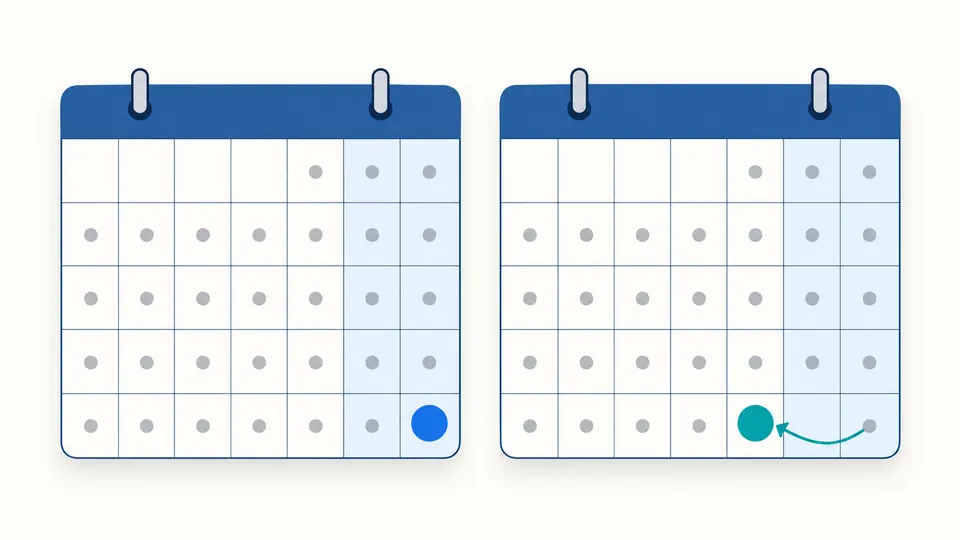
L selects the calendar month-end; LW selects its last Monday-to-Friday date. When a month ends on Sunday, the two schedules fire on different dates. The preview makes that distinction visible before you use a rule for closing a reporting period.

Two identical calendar grids highlight the last Sunday and the preceding Friday respectively, with weekend columns shaded.

Review fields, timezone and the search window

01

Bring an existing expression into the draft

Load input into fields parses the current expression without replacing it. Templates also change only the draft. Leave the year field empty for six fields, or enter a year restriction for seven. Preview shows the changed settings and character counts before Apply.

02

Make the start instant unambiguous

The initial example starts on 1 January 2026 in UTC. Now prepares a replacement start for review. Enter seconds in an ISO date-time; an unzoned value uses the selected IANA zone. A repeated or missing local time needs Z or an explicit offset.

03

Check whether the requested count was reached

The first 50 calculated dates are displayed, with more in batches of 50. Copy includes the entire report and Download produces JSON. Automatic preview waits 350 ms; turn it off to use Analyze or Ctrl/Cmd + Enter. Any input or option change disables stale exports.

Inspect the conditions that produce each date

Seconds and an optional year

Read six required fields in order: second, minute, hour, date, month and weekday. A seventh field restricts years. The normalized expression preserves whether that year was supplied; omitting it does not remove the seconds field.

Relative dates with real calendar matching

L-n counts back from month-end; nW finds the nearest weekday without crossing into another month. nL means the last named weekday, while n#k selects its kth occurrence. The report explains each selector and evaluates it against each candidate month.

Ranges that cross a boundary

Numeric steps expand inside their own field. 5/15 in minutes selects 5, 20, 35 and 50, then starts again next hour. Hour 22-2 and month NOV-FEB wrap through their boundaries. Numeric ranges may have steps; year ranges must move forward.

Next execution times with explicit context

Each match includes a local date-time, UTC offset and UTC instant. The result records the start and search limit, so another person can see which window was checked. Valid but sparse schedules retain their returned/requested counts instead of looking complete.

The supported Java dialect and preview limits

A common Java Quartz 2.3.2 subset
One line, at most 512 UTF-16 units, with six or seven fields. This is not a Spring, Quartz.NET, Jenkins or AWS adapter. Seconds and minutes are 0–59; hours 0–23; months 1–12; weekdays 1=SUN through 7=SAT. Exactly one day field must be ?.
Special day selectors stand alone
L, L-1 through L-30, LW and 1W through 31W are supported in the date field. A weekday may use L (Saturday), nL or n#1 through n#5. Special-selector lists, multiple # items and L-nW are rejected. Use separate triggers when one expression cannot represent the requirement.
Names and numeric steps have separate roles
JAN–DEC and SUN–SAT are case-insensitive. A range can use two names or two numbers. Steps containing names, such as JAN-MAR/2, and mixed name-number ranges are rejected because Java parser behavior is not reliably intuitive. Use numeric steps or an explicit list.
Missing dates and finite searches
A missing 31st, 31W or fifth weekday is skipped rather than moved to another date. W means Monday through Friday, without holiday calendars. Years and starts are limited to 1970–2099; preview searches up to ten local calendar years, returns at most 1,000 matches and stops after five seconds.
A preview does not run a trigger
Nonexistent DST times are skipped. Overlaps normally choose the later offset, but local fields never rewind behind the start time. Browser and JVM timezone data may differ. Misfires, holiday exclusions, retries, concurrency and job execution belong to your scheduler and are not simulated.

Quartz cron generator questions

Why does Quartz require a question mark in a day field?

The question mark means no specific value for that field; * selects every value. To schedule weekdays at nine, use 0 0 9 ? * MON-FRI. To schedule every day at nine, use 0 0 9 * * ?. Supplying conditions in both day fields, or putting ? in both, is rejected.

What do L, W and # mean?

Their meaning depends on the field. Date L is month-end, date 15W is the nearest Monday-to-Friday date to the 15th, and weekday FRI#3 is the third Friday. Weekday L alone is Saturday; 6L is the last Friday. Choose the relative-day templates to compare actual results.

How do I run a job on the last day of each month?

Use 0 0 9 L * ? for 09:00 on the last calendar day. It follows 28-, 29-, 30- and 31-day months. If you need the last weekday instead, use LW. Neither expression accounts for public holidays or guarantees that a configured job will finish that day.

What if the selected day does not exist in a month?

That month contributes no matching date. A rule for the 31st skips April; February 31 never matches; MON#5 skips months with only four Mondays. An incomplete preview states the returned count within its search window, which is different from a syntax error.

How do I schedule the last Thursday of every month?

Use 0 0 9 ? * THUL, or its numeric equivalent 0 0 9 ? * 5L. Java Quartz numbers Sunday as 1, so Thursday is 5. THU#4 means the fourth Thursday and can differ from the last one in a month that contains five Thursdays.

Unexpected schedule?

Review the dates before updating a trigger

Use the Quartz cron generator to check the expression and its returned dates, then copy it into the matching Java Quartz configuration. Confirm the production timezone and trigger policy there.

A matching calendar time is a preview, not proof of job execution.