01
Set a default only for bare numbers
The input unit selector applies to lines without a suffix. A line ending in MiB keeps that unit even when the selector says B. Add a bare number to compare it with an explicitly labelled line.
Numbers, Bitwise & Units
Enter a size or one size per line. Compare decimal and binary units together.
Your input is processed in this browser and is not sent to a server.
Each input will show bit/B, decimal and binary equivalents.
One nonnegative decimal per line, optionally followed by a unit. A suffix overrides the default. Use a dot, no digit grouping.
1 B = 8 bit · 1 KB = 1000 B · 1 KiB = 1024 B. Aliases: b, byte, bytes, kB.
≈ rounded; < below the display step. JSON also preserves the exact quantity as a fraction in bits.
Up to 500 nonempty lines, 100 digits per number, 100000 characters. Any invalid line stops the batch.
Enter input or choose an example to begin.
A data size converter is useful when a storage quota, a file listing and a disk label use different units. Start with the actual byte count when you have it; a number labelled GB alone may hide the convention used by the original application.
A bytes to KB calculation and a bits to bytes calculation need different factors. Here the unit stays attached to each input, so a list containing 1 GB and 1 GiB remains two different quantities throughout the report.
The decimal and binary columns answer the KB vs KiB question directly. With 1024 B, you get 1.024 KB and exactly 1 KiB. The number of bytes stays constant; only the unit used to express it changes. You can compare a disk specification with a binary quota without switching a hidden base setting.
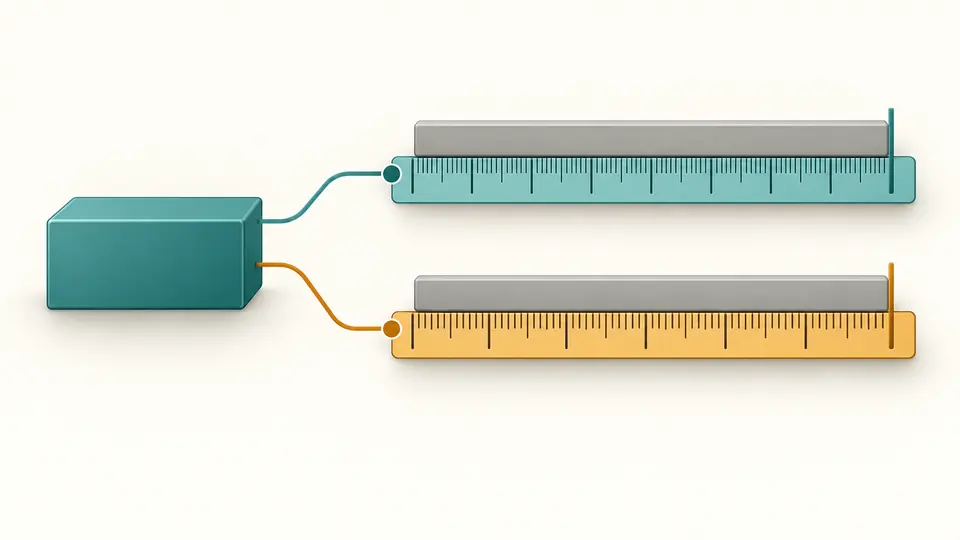
This data size converter reads the suffix on each line instead of stripping it away. Paste 1 GB, 1 GiB and 8 bit on separate lines: each produces its own twelve-unit result. The original line number travels with the output, making mixed file inventories easier to check.

The input unit selector applies to lines without a suffix. A line ending in MiB keeps that unit even when the selector says B. Add a bare number to compare it with an explicitly labelled line.
Six decimal places is the default. Increase it for tiny quantities; ≈ marks a rounded result and < marks a positive value below the displayed resolution. The exact fraction remains in the JSON report.
Blank lines do not become records. Expand a result row to see all twelve units, and load another 50 records if needed. In manual mode, Ctrl/Cmd+Enter refreshes the results before copying.
Basic bit and B values sit beside decimal KB through PB and binary KiB through PiB. Every source can be converted into every listed unit. Decimal steps are 1000; binary steps are 1024.
Large byte counts such as 9007199254740993 retain their last digit. Fractional amounts are also allowed: 1 bit becomes 0.125 B, without first rounding up to a whole byte. Only the displayed decimal is rounded.
Up to 500 nonempty rows are processed together. TXT includes units and approximation marks; JSON includes original lines, settings, every result and the exact numerator/denominator in bits as strings. Export always includes the full batch.
A decimal terabyte is 1000000000000 B. Expressing that quantity in GiB gives about 931.322575 GiB. Some applications label this binary value GB. This explains the unit difference; formatting, partitions and reserved space can separately reduce usable capacity.
A kilobyte uses a factor of 1000 bytes, while a kibibyte uses 1024. The difference grows with each prefix. For example, 1 MB is 1000000 B and 1 MiB is 1048576 B, so replacing one suffix with the other changes the quantity.
The SI kilo prefix uses lowercase k, so kB is the standard spelling. KB is a common spelling that this tool accepts and displays as the same decimal unit. To request 1024 bytes, write KiB explicitly.
Bandwidth is a rate, usually expressed in bits per second; a file size is an amount, usually in bytes. One byte contains eight bits. This page converts the amount only. A value ending in /s is a rate and needs a separate rate converter.
The entered decimal and all unit factors are calculated exactly. The chosen decimal places affect display only. For an exact downstream calculation, use the JSON numerator and denominator rather than reusing a rounded display value. A visible zero without a mark means the input quantity is zero.
Something looks wrong?
Use the data size converter to compare both scales, then export the checked quantities with their units intact.