01
Start with the embedded profile
Extract embedded.mobileprovision from your own app bundle before comparing profiles. The example is synthetic CMS content with no signer, useful for exploring the views but impossible to install.
iOS / Android Dev Tools
Choose a local profile or try the synthetic example. Decode the file, then inspect its fields and export an XML copy.
Drop one .mobileprovision or .provisionprofile file here. Maximum 5 MiB.
No file selected
Reading stays in this tab. Files are not uploaded or saved by the tool.
Mask known device strings and empty binary data. Team, app and other metadata remain visible. Changing this option requires decoding again.
Choose a file, then decode.
Decoding does not verify signatures, certificates, revocation or installation eligibility.
Export is an unsigned XML copy, not an installable provisioning profile.
A provisioning profile viewer helps when an archive uses an unexpected team, a device cannot install a development build, or two similarly named profiles have different dates. Inspect the file that was actually embedded in the app before comparing it with a downloaded copy.
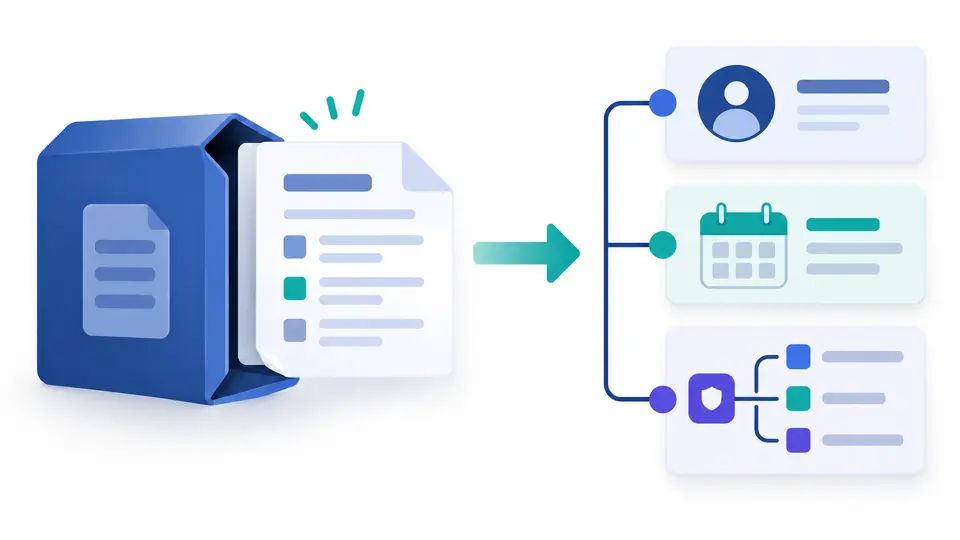
This mobileprovision decoder follows the CMS container to its embedded XML. You can inspect provisioning profile fields without treating a readable document as proof of an Apple signature. The XML is a diagnostic view; modern systems can use the separate DER-Encoded-Profile representation.
This provisioning profile viewer puts the team, application identifier and profile expiration date in an overview, with the original field paths one view away. Entitlements remain typed values, so a boolean permission does not become an ambiguous text label.
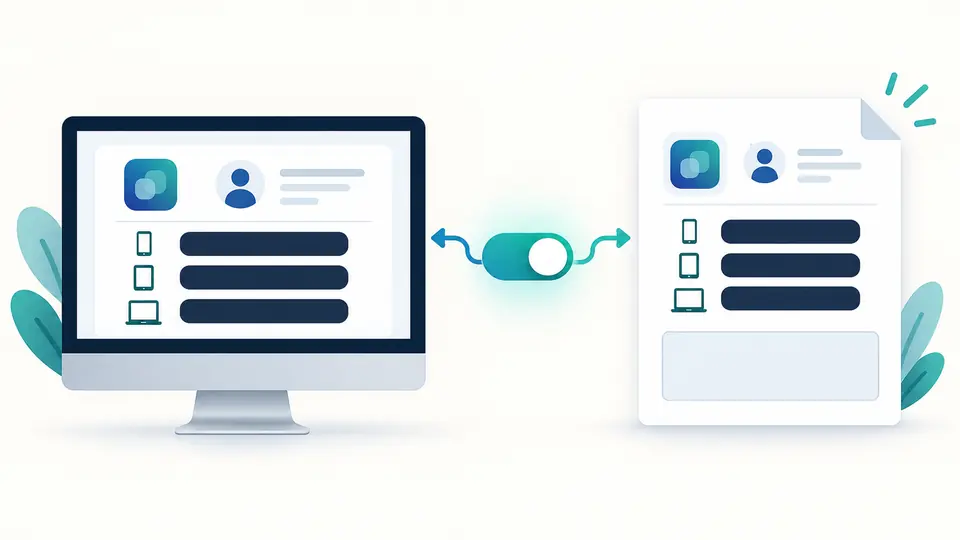
Device identifiers are hidden by default in the tree, entitlements and XML copy. Matching strings are replaced, and binary data is omitted because it can carry another copy of the identifiers. Team and app metadata remain visible; this is selective masking, not anonymization.
Extract embedded.mobileprovision from your own app bundle before comparing profiles. The example is synthetic CMS content with no signer, useful for exploring the views but impossible to install.
Turning device masking on or off clears the previous result and disables export. Click Decode again, or use Ctrl/Cmd + Enter. Switching between overview, entitlements, tree and XML does not change the parsed data.
Click a dictionary or array path to collapse or expand its descendants. The tree adds 50 rows at a time; export still includes the complete current XML copy. Clear and replacement previews can be undone once.
See the profile name, UUID, team name and TeamIdentifier values. The displayed Bundle ID is derived by removing the first prefix segment from application-identifier, with the macOS entitlement key as a fallback. Wildcards remain intact.
Inspect the Entitlements dictionary separately from the full document. Arrays, dictionaries, booleans, integers, dates and data keep their types. These values describe the profile’s permission allowance; they are not a dump of the app’s actual signed entitlements.
CreationDate and ExpirationDate remain UTC values. The overview reports whether the expiration instant has passed according to the browser clock at decode time. A missing date stays unknown, and a future date never establishes signature validity.
Extract plist content through the SignedData structure instead of searching arbitrary bytes for XML tags. The downloaded plist keeps value types and dictionary order. With masking enabled, device strings are substituted and all data payloads become empty data elements.
Choose the local file and press Decode. The reader checks the CMS structure and then parses the enclosed XML plist. A text editor may show readable fragments, but those fragments alone do not establish that the surrounding file is a supported container.
Open the full tree and expand ProvisionedDevices. Masking initially replaces the identifiers while retaining the list count. To inspect their actual values, disable masking and decode again. An absent list does not automatically mean that every device is allowed.
Read ExpirationDate and the comparison time in the overview. This answers whether the listed date has passed on your current clock. It does not answer whether the signature, certificate or profile is currently accepted by Apple; use platform signing tools for that determination.
For a development or ad hoc IPA, inspect the embedded.mobileprovision inside the app bundle in Payload after extracting the archive yourself. This page does not unpack IPA files. Apps delivered by the App Store may not contain an embedded provisioning profile.
Editing an exported XML date cannot extend an Apple-signed profile. The XML copy has no CMS signature and is for inspection only. Update or regenerate the profile through your developer account or Xcode as appropriate, then build again using the replacement.
Missing a detail about profile inspection?
Use the provisioning profile viewer to compare the actual team, device list and entitlements behind a build. Keep the unsigned XML copy as debugging evidence, and use Apple’s tools when you need a trust or signing decision.