01
Start near the motion you want
Choose ease, ease-out, Material standard or a single-overshoot preset. Presets set all four control values; editing a handle afterward switches the selector to Custom without creating a new URL.
HTML, CSS & Frontend Code
Drag the handles or enter four numbers; a valid curve becomes copyable CSS.
Drag either handle or use arrow keys; Shift+arrow makes a larger move.
cubic-bezier(0.25, 0.1, 0.25, 1)The curve and pasted value stay in this browser; no network request is made.
The dashed diagonal shows constant progress for comparison.
Curve updated.
When a transition feels too abrupt or too sluggish, a cubic bezier editor makes the timing visible. Start with a familiar CSS preset, then move the first handle to change the launch and the second to shape the finish.
You can paste an existing cubic-bezier() value from a cubic bezier generator, keep its typed precision and compare the curve against a linear reference. The animation preview uses the browser’s actual easing function, so a single overshoot is easier to judge than a row of numbers.
Edit the numbers and the shape together, then test the motion in the browser.
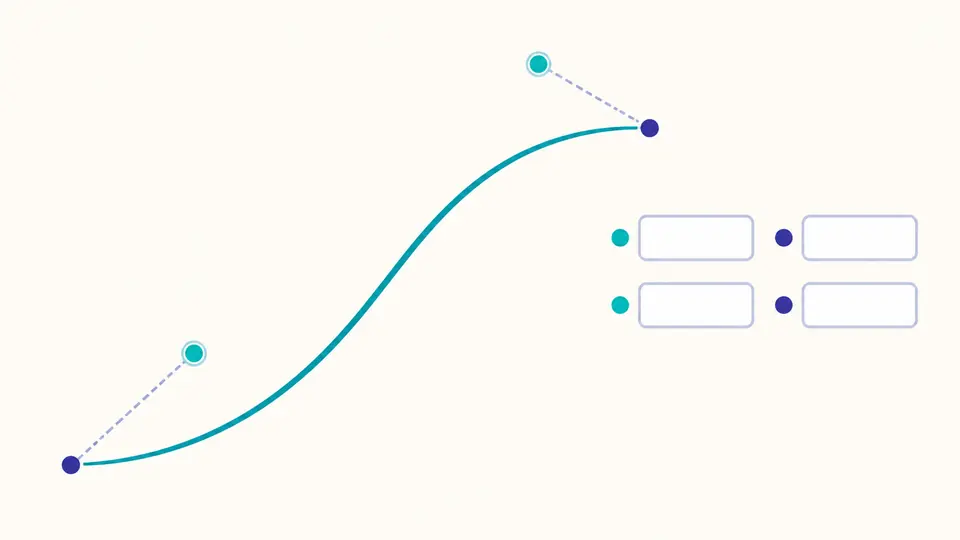
The first and second control points are draggable, while X1, Y1, X2 and Y2 remain editable. Paste a curve from an existing stylesheet and the cubic bezier editor loads its values without rounding a precise number to two decimals.
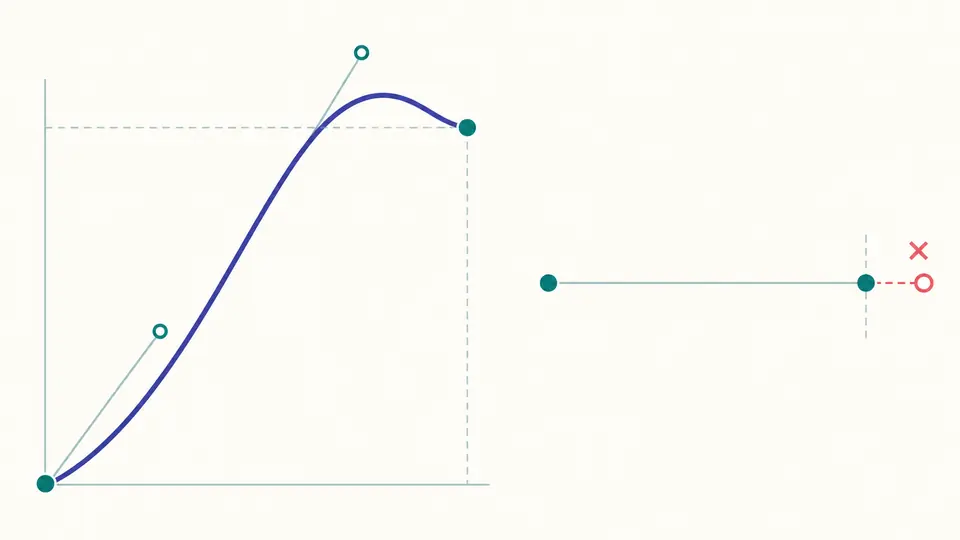
CSS limits X1 and X2 to 0–1 but allows Y to go below zero or above one. The cubic bezier editor preserves an out-of-range typed X and shows the field error instead of silently clamping it; a positive Y overshoot remains available for a single settling motion.
Choose ease, ease-out, Material standard or a single-overshoot preset. Presets set all four control values; editing a handle afterward switches the selector to Custom without creating a new URL.
The first handle governs the start and the second governs the end. Dragging stops X at the CSS boundary, but typing an invalid X shows an error. Y can leave the unit interval to anticipate or overshoot.
Set a positive duration in milliseconds and press Play. The preview does not loop, and the duration is only a viewing option; the copied easing function does not include it. In manual mode, Ctrl/Cmd+Enter updates the result.
Dragging, keyboard arrows, numeric fields and function import all lead to the same control points. A linear reference stays optional so you can see how an easing curve changes progress relative to constant speed.
Play the result once at the chosen duration. The preview applies the generated CSS cubic-bezier() easing through the browser animation engine rather than treating the Bézier parameter as elapsed time.
Copy only cubic-bezier() for an animation shorthand, or copy a transition-timing-function declaration. Both actions are disabled as soon as the current input is stale or invalid.
They are X1, Y1, X2 and Y2, the two movable control points between fixed endpoints (0,0) and (1,1). X maps input time; Y maps output progress. The handles and fields show both points together.
Ease-out often fits an element entering or responding because movement begins promptly and slows to rest. Material standard is another useful starting curve. Replay at your real duration before choosing; a 150 ms reaction and a 600 ms entrance feel different.
Both slow near the finish, but ease begins more gently. Ease-out starts moving sooner and usually feels more immediate for an entry. Select each preset and replay to compare them at the same duration.
Raise Y2 above 1 or choose the single-overshoot preset for a brief move past the endpoint before settling. A cubic-bezier() curve does not create repeated bounces; multiple rebounds require keyframes or a spring model.
Yes. Put the copied function in animation-timing-function or an animation shorthand. This editor produces the easing value; it does not author the keyframes or set their duration, delay and iteration count.
Still have a question?
Paste a value from your stylesheet, replay the timing, and copy the result when the input is valid. The cubic bezier editor keeps the original four numbers visible while you tune them.