Files, Binary & Compression

Hex ViewerRead any file byte by byte, and rebuild one from a dump

Open a file to browse its bytes, or switch to Paste hex dump to turn xxd or hexdump -C output back into a file.

Hex Viewer

Input

example-1x1.png

70 bytes (0x46)

Drop a file here, or use Open file.

Files are read locally in your browser, a small window at a time; nothing is uploaded.

Hex view

00000000 89 50 4e 47 0d 0a 1a 0a 00 00 00 0d 49 48 44 52 .PNG........IHDR
00000010 00 00 00 01 00 00 00 01 08 06 00 00 00 1f 15 c4 ................
00000020 89 00 00 00 0d 49 44 41 54 78 da 63 64 60 f8 5f .....IDATx.cd`._
00000030 0f 00 02 87 01 80 eb 47 ba 92 00 00 00 00 49 45 .......G......IE
00000040 4e 44 ae 42 60 82 ND.B`.
Selection 0x00000000–0x00000000 (1 bytes)

Click a byte to move the cursor. Shift+click or Shift+arrow keys extend the selection; PageUp, PageDown, Home and End work inside the view.

Inspector at 0x00000000 (0) · Little-endian

Bits
10001001
int8
-119
uint8
137
int16
20617
uint16
20617
int32
1196314761
uint32
1196314761
int64
727905341920923785
uint64
727905341920923785
float32
52816.53515625
float64
5.292397776572611e-260
UTF-8
—

Options

example-1x1.png: 70 bytes.

A hex viewer is what you open when a file will not tell you what it is: a download that refuses to install, a config blob an app wrote, a firmware image, a PNG that no program wants to display. The offset column tells you where you are, the hex column shows each byte exactly, and the ASCII column makes any readable strings jump out.

You could run xxd or hexdump -C in a terminal, and this hex viewer prints exactly the same layout so you can compare the two line by line. What the terminal does not give you is a cursor: click a byte and the inspector reads the integer or float that starts there in little- or big-endian, and the same page can take a dump someone pasted into a ticket and hand you the original binary back.

Why use this hex viewer

It reads like the terminal, but you can point at a byte and ask what it means.

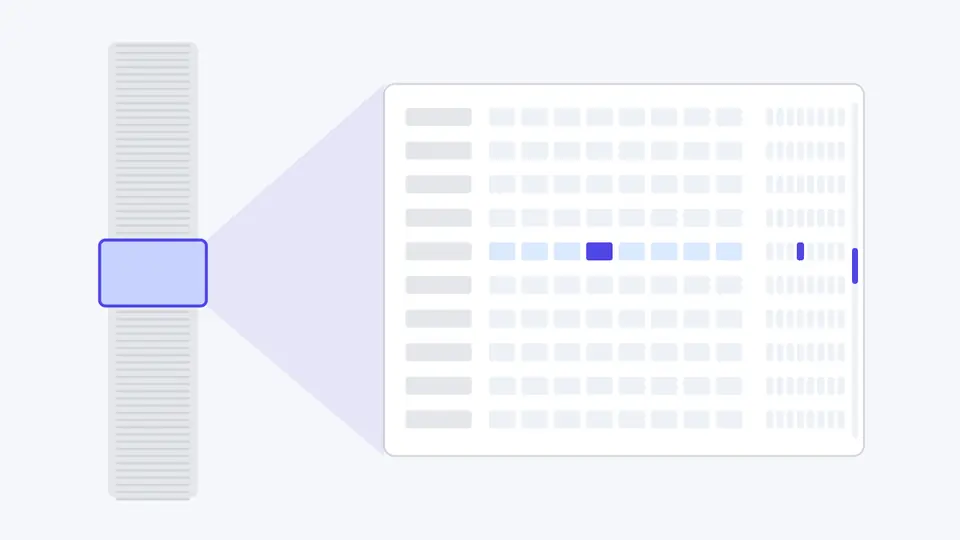
Big files open instantly

Only the sixteen rows on screen, plus the eight bytes under the cursor, are ever read from disk. A 3 GB disk image scrolls as smoothly as a 3 KB icon, and nothing is truncated to the first megabyte.

A tall file on the left with one small window highlighted, projected into a sixteen-row hex grid on the right with the cursor byte marked.

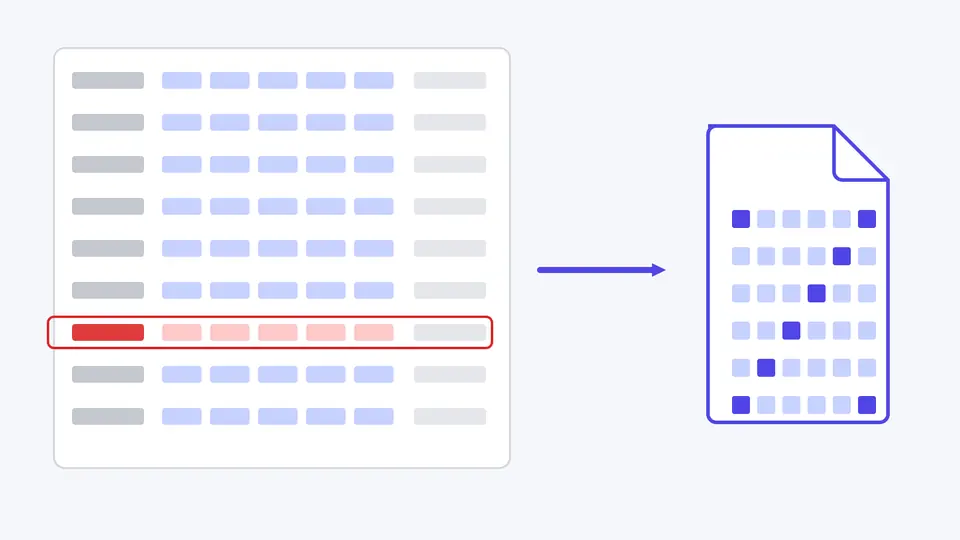
A pasted dump becomes a file again

Paste xxd or hexdump -C output, including the * lines hexdump uses for repeated rows, and download the bytes as a .bin. A line with a gap in its offsets is reported with its line number instead of being filled with zeros.

Rows of a hex dump with one row outlined in red for an offset gap, and an arrow pointing to a rebuilt binary file.

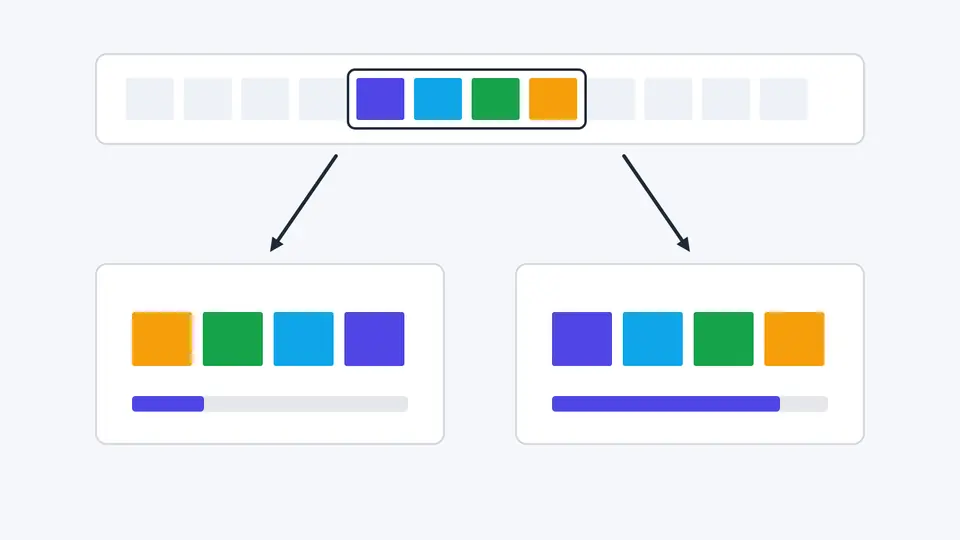
Values in both byte orders

The inspector reads the bytes at the cursor as 8- to 64-bit integers and 32- or 64-bit floats. Switch between little- and big-endian and you see how the same four bytes turn into two very different numbers.

Four coloured bytes read in two orders: reversed on the left for little-endian, kept in order on the right for big-endian, each producing a different value bar.

Get more out of the view

01

Open a file, or paste a dump

Drop a file onto the input or use Open file; the view appears immediately and never loads the whole file. Paste hex dump takes xxd, hexdump -C, plain hex or a C array and converts it 350 ms after you stop typing.

  • Turn Auto-convert off to convert only when you press Convert or Ctrl/Cmd+Enter.
  • Load example in paste mode shows a hexdump -C listing with a * line, so you can see how collapsed rows expand.
02

Move with the keyboard, not the scrollbar

Click a byte, then use the arrow keys, PageUp and PageDown. Ctrl/Cmd+Home and Ctrl/Cmd+End go to the first and last byte. Jump to offset accepts 0x1A0, 1A0h or plain decimal 416.

  • Search defaults to hex bytes, so a signature like 89 50 4E 47 or FF D8 FF is found as-is; switch to Text for strings.
03

Export exactly the bytes you selected

Shift+click, or type a range start and length, to select bytes, then pick an export format. The offset column in hexdump -C and xxd output keeps the real file offsets, so the exported slice still lines up with the original file.

  • Text exports stop at 1 MiB; Download selection (.bin) has no such limit because it copies the bytes directly.

What you can do with the bytes

Terminal-identical layout

Lowercase hex, an extra gap after the eighth byte, non-printable bytes shown as a dot, and 8, 16 or 32 bytes per row. Zero bytes are dimmed so padding is easy to skip.

Byte and text search

Search a hex sequence or a UTF-8 string across the whole file in a background worker, with a progress bar, a match counter and previous and next buttons. Matches that span a chunk boundary are still found.

Data inspector

Signed and unsigned 8-, 16-, 32- and 64-bit integers, float32, float64, the bits of the current byte and the UTF-8 character starting there, all read from the cursor position.

Four text formats and raw bytes

Copy or download a selection as hexdump -C, xxd, plain hex in the xxd -p layout, or a C array like xxd -i produces, or save the raw bytes as a .bin.

Limits and parsing rules

Read-only: bytes are never changed
There is no editing, insert, fill or find-and-replace, and the original file is never written. To patch a file, export the range as xxd, edit the text, paste it back in Paste hex dump mode and download the .bin — the same round trip as xxd and xxd -r.
Gaps in a pasted dump are an error, not zeros
Every line's offset must continue exactly where the previous line ended. xxd -r fills a gap with zero bytes; this tool stops at the first gap, overlap or unexpected character and reports its line and column, because a gap usually means lines were lost while copying. Intel HEX firmware records are recognised and rejected with their own message.
Size limits
Files up to 4 GiB open. Pasted dumps are limited to 16 MiB of text, text exports to 1 MiB of selected bytes, and a search stops after 10,000 matches and says so. Search patterns can be up to 256 bytes.
What the text column and search do not do
The text column is plain ASCII, so multi-byte UTF-8 characters show as dots there; the inspector's UTF-8 row decodes the one under the cursor. Ignore case folds only A–Z. There are no wildcards, no search by numeric value, and no file-type detection or structure parsing.

Hex viewer questions

How can I view a binary file on Windows without installing any software?

Open this hex viewer in any browser and drop the file onto it. The file is read locally by the browser itself, so nothing is installed and nothing leaves your computer.

How do I convert a hex dump back to a binary file?

Switch to Paste hex dump, paste the xxd, hexdump -C or plain hex text, and choose Download whole file (.bin). It is the browser equivalent of xxd -r, except that missing lines are reported instead of silently filled with zeros.

Can it open very large files?

Yes, up to 4 GiB. The hex viewer only reads the rows currently on screen, so opening a large file is as fast as opening a small one. Searching a large file does read all of it, in 1 MiB chunks with a progress bar you can cancel.

How do I check a file's magic number or header?

The first bytes at offset 00000000 are the signature: 89 50 4E 47 is PNG, FF D8 FF is JPEG, 50 4B 03 04 is ZIP. To find a signature further inside a file, search for it in hex bytes mode.

Can I edit bytes or save changes?

No, the view is read-only. Export the part you need as xxd text, change it in any text editor, then paste it back in Paste hex dump mode and download the rebuilt .bin.

Still have a question?

Open a file in the hex viewer

Load the example PNG to see its signature, IHDR chunk and big-endian width in the inspector, then open a file of your own in the hex viewer.

Everything runs locally in your browser.