Files, Binary & Compression

Gzip / Deflate / Brotli Compression ToolCompress, decompress and compare, all in your browser

Choose a file or paste text, pick an algorithm and direction, then run. Nothing leaves your browser.

Gzip / Deflate / Brotli Compression Tool

Input
Direction
Algorithm

Input

Drop a file here, or choose one.

Files and text are compressed locally in your browser; nothing is uploaded.

Result

Add a file or paste text, then choose Compress or Decompress.

6

Add a file or paste text, then choose Compress or Decompress.

Pasting a config file into a chat to "just gzip it" or reaching for a command line just to check whether Brotli beats Gzip on a small payload is more setup than the task deserves. The Gzip / Deflate / Brotli Compression Tool runs all three real algorithms locally, so you can compress or decompress a file or a block of text and see exactly how many bytes you saved.

It differs from a quick script in the details that actually bite: an adjustable compression level instead of a fixed default, a byte-for-byte comparison instead of a guess, and a hard cap on how much a decompression can expand before the tool refuses to keep going.

Why use the Gzip / Deflate / Brotli Compression Tool?

See the exact size, not a guess

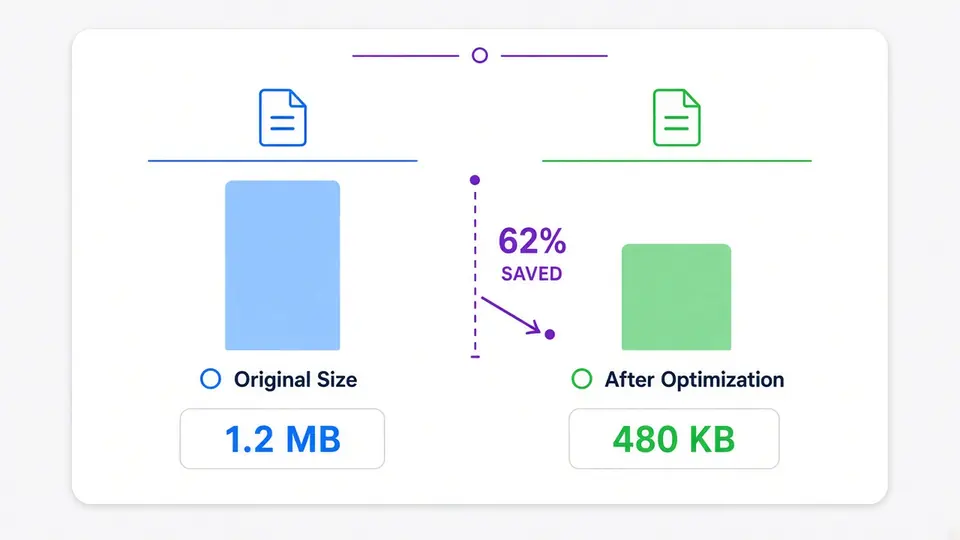
Every run reports the original and result byte counts side by side with the percentage saved, so you can tell whether Brotli's higher quality settings were worth the extra time before you download anything.

A bar comparing an original file size against a smaller compressed result, with the percentage saved labeled between them.

Decompression that can't run away

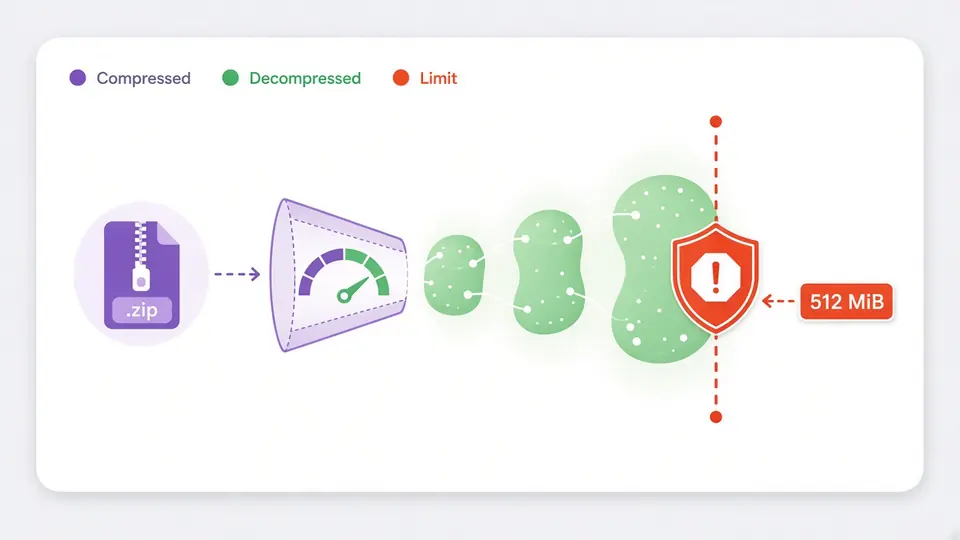
A tiny file can decompress into gigabytes. This tool streams the output and counts bytes as they are produced, stopping the moment the total would pass 512 MiB instead of trying to hold the full result in memory first.

A small compressed file expanding through a gauge that stops and blocks further growth once it reaches a fixed limit.

Three things worth knowing before you run it

01

Runs stay manual on purpose

There is no auto-run toggle here. Brotli at its highest quality can take real time on a large input, and it needs Cancel to actually mean something — so nothing starts until you click Compress or Decompress, or press Ctrl/Cmd+Enter. Changing the algorithm, level or input marks the current result stale; run again to refresh it.

02

Swap turns a run into a round-trip check

Once a result is ready, Swap previews putting that result back into the input and flipping the direction — compress then decompress, or the reverse — so you can confirm the bytes come back exactly. It only replaces your input after you click Apply, and Undo restores the previous input and result once.

03

Text mode speaks Base64, not raw bytes

Compressing text encodes it as UTF-8 first. Decompressing in text mode expects Base64 of the compressed data, because pasting raw binary as text isn't possible. The decompressed result is shown as readable text when it is valid UTF-8, and falls back to Base64 automatically when it isn't. For arbitrary binary, use File instead of Text.

What it actually does

Three real algorithms, not one with different names

Gzip and Deflate run through fflate with a 0–9 level; Brotli runs through a WebAssembly build with a 1–11 quality setting. All three execute in your browser, including in a background Worker so the page stays responsive.

One file or one block of text

Drop or choose a single file, or paste text directly. The tool doesn't build or unpack archives — it handles one raw compression stream at a time, which is what Gzip, Deflate and Brotli actually are.

A comparison you can act on

Original bytes, result bytes and the percentage change are shown together after every run, including the honest case where a very small or already-compressed input comes out slightly larger.

Cancel that actually stops the work

Compression and decompression run in a Worker you can terminate mid-task. Cancel discards the in-progress run immediately instead of waiting for it to finish first.

What this tool won't do, and why

No ZIP, TAR or 7z archives
Gzip, Deflate and Brotli are single-stream compression formats, not archive formats. Packing multiple files, storing names and folder structure, or reading an existing archive needs a different kind of tool entirely.
Direction is never guessed for you
The tool never inspects your input and decides on its own to decompress it. You choose Compress or Decompress explicitly every time, which keeps an unexpected paste from triggering an unwanted expansion.
The 512 MiB decompression cap is fixed
It is shown as a note, not a setting. Making it adjustable would let anyone hitting the error simply raise it until the check stops meaning anything, which defeats the point of having a decompression-bomb limit at all.
Corrupted or truncated data is rejected, not guessed at
Gzip and Deflate results are checked against their built-in CRC32 or Adler-32 checksum after decompressing, and Brotli's end-of-stream marker is verified. A truncated or edited file produces a clear error instead of silently returning incomplete bytes.
Nothing is uploaded, ever
The Gzip / Deflate / Brotli Compression Tool runs compression and decompression entirely in your browser. No file, pasted text or result is sent anywhere, and it makes no network requests of its own.

Gzip / Deflate / Brotli Compression Tool questions

Can I compress and decompress Gzip, Deflate and Brotli online without uploading anything?

Yes. As an online compressor and decompressor, this tool runs entirely in your browser: files and pasted text are read locally, compressed or decompressed on your device, and never sent to a server. You can check this yourself with your browser's network panel open.

Gzip vs. Deflate vs. Brotli: which one should I use?

Deflate is the raw algorithm inside a zlib wrapper; Gzip wraps the same algorithm with its own header and checksum, which is why Gzip files are a little larger than the equivalent Deflate output. Brotli generally compresses smaller than both, especially at higher quality settings, at the cost of being slower to compress (decompression stays fast for all three). If you need the widest compatibility, choose Gzip; if you want the smallest result and can afford the extra compression time, choose Brotli.

What does the Gzip/Deflate compression level (0–9) actually change?

It trades compression time for output size: 0 stores the data with almost no compression and finishes fastest, 9 spends the most effort looking for repeated patterns and produces the smallest file, and 6 is a common balanced default. The decompressed result is identical no matter which level you pick — only the size and the time to produce it change.

What is a decompression bomb, and how does this tool protect against one?

A decompression bomb is a small compressed file crafted to expand into an enormous amount of data, which can freeze a tab or crash it by exhausting memory. This tool decompresses in a stream and counts output bytes as they're produced, stopping immediately once the total would exceed a fixed 512 MiB — before it ever tries to hold the full expanded result in memory.

Is it safe to decompress a Gzip, Deflate or Brotli file from an untrusted source here?

It's safer than most alternatives because nothing is uploaded and the 512 MiB cap stops runaway expansion, and the tool verifies each format's built-in checksum so silently corrupted output isn't possible. It does not scan the decompressed content for malware, so treat the recovered bytes with the same caution you would apply to any file from an untrusted source.

Can I compress a Brotli file online and choose the quality level?

Yes — select Brotli as the algorithm and use the quality slider (1–11). Quality 11 gives the smallest output but can take noticeably longer on larger files; lower values trade some compression for speed. Cancel is available at any point if a high-quality run takes longer than you'd like.

Still have a question?

Compress or decompress your next file

Load the example to see a large, repetitive block of text shrink dramatically, or bring your own file or pasted text into the Gzip / Deflate / Brotli Compression Tool.