Files, Binary & Compression

Compare Binary FilesFind the exact offsets where two files disagree

Pick File A and File B, then run Compare to see every byte range that differs between them.

Compare Binary Files

Files

File A

Drop a file here, or choose one.

File B

Drop a file here, or choose one.

Files are compared locally in your browser; they are not uploaded.

Differences

Change a file and compare again to update the result.

Choose File A and File B, then run Compare.

You reach for a binary file comparator like this one when a checksum only tells you two files differ, not where: a re-encoded asset, a patched firmware image, two builds of the same binary. To compare binary files here, both are read locally and every differing byte range is reported by its offset and length, instead of a single pass or fail verdict.

This is not a text diff. It never tries to detect an inserted or deleted byte and re-align everything after it — it compares offset N of File A against offset N of File B, the same policy `cmp` and most hex-compare tools use, and the one that keeps a comparison predictable on formats that have no concept of a line.

Why compare binary files here

A byte-level answer to what changed, not just whether it changed.

Every difference gets its own offset

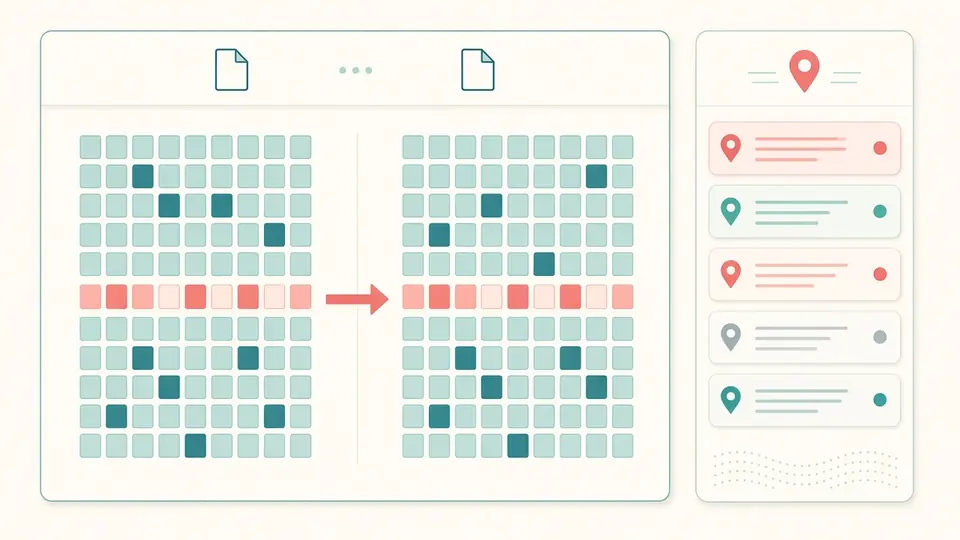
Instead of one match-or-mismatch verdict, the block list gives each differing region an offset and a length, and clicking one jumps the hex view straight to it with a few bytes of context on each side.

Two files shown side by side with a highlighted byte range and its offset called out.

A length mismatch is its own block

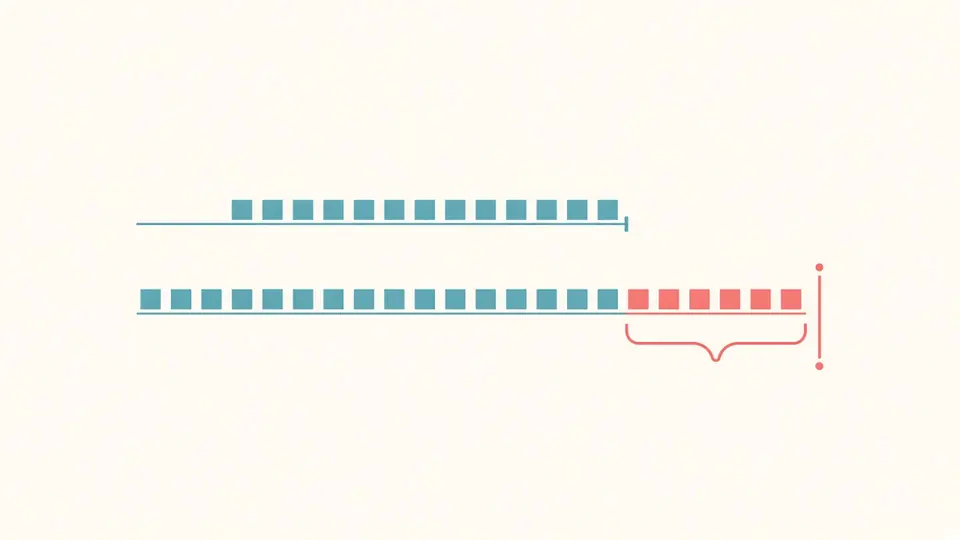
When File A and File B are not the same size, the extra trailing bytes of the longer one are reported as their own block instead of being folded into the last changed region.

A shorter file and a longer file, with the extra trailing bytes of the longer file marked as a separate block.

Read the comparison without missing a block

01

Load File A and File B

Drop a file onto either slot or use Choose file. Swap A / B exchanges the two — instantly, without recomputing, if a result is already showing — and Load example fills in a small pair with both a changed region and a length difference.

  • Each file can be up to 512 MiB; larger files are rejected before anything is read.
02

Run Compare

The comparison does not start the moment both files are picked — press Compare, or Ctrl/Cmd+Enter, so a large pair never runs before you are ready. Changing either file marks the previous result as stale.

  • More than 20,000 differing blocks fails outright rather than silently cutting the list short; that usually means the two files are not really related.
03

Move through the differences

Differences only shows just the diff block list; Browse all bytes lets you page through the whole file instead. Either way, Jump to offset takes a decimal or 0x-prefixed hexadecimal value.

  • Copy fragment and Download fragment export the selected block, padded with a little surrounding context, as a small hex-and-ASCII text file.

What the comparison covers

Offset-aligned byte comparison

Both files are read in matching 1 MiB chunks and compared at the same offsets. A block is a run of strictly consecutive differing bytes, so the result is fully deterministic.

A block list you can act on

Every differing region appears with its offset, length and kind, and selecting one moves the hex view there and enables exporting that block as a fragment.

A report of the whole comparison

Copy or download a plain-text report listing both file sizes, the byte and block counts, and every block's offset and length.

Two ways to browse

Differences only jumps between diff blocks; Browse all bytes pages through the entire file at a chosen number of bytes per row, for a plain read-through.

What this comparison does and does not do

No insertion or deletion alignment
This tool compares offset N of File A against offset N of File B; it does not detect a byte inserted early in one file and re-align everything after it, the same policy `cmp` and vbindiff use. A single inserted byte therefore shows as one long changed block from that point on — expected behaviour, not a bug.
512 MiB per file, 20,000 blocks per comparison
Files larger than 512 MiB are rejected before any bytes are read. If a pair would produce more than 20,000 differing blocks, the comparison fails outright instead of truncating the list, since that usually signals two files that are not really comparable.
Not a hex editor or a file-type detector
Bytes here are read-only; there is no in-place editing. Identifying a file's format from its signature is a separate tool's job — Compare binary files only reports where two given files differ.
Compressed or encrypted files usually diff almost everywhere
Compression and encryption both tend to change most output bytes for even a tiny input change, so two compressed files often show as one large block. Compare the uncompressed or decrypted form for a meaningful byte-level diff.

Compare binary files: common questions

Can I start the comparison at a specific offset?

The comparison itself always starts at offset 0 of the shorter file, but Jump to offset moves the hex view to any position you give it — decimal or 0x-prefixed hex — so you can inspect a specific region without scrolling.

How does it handle two files of different sizes?

It compares up to the length of the shorter file, and the extra trailing bytes of the longer one are reported as their own block — labelled as extra bytes in A or in B — rather than being counted as ordinary value differences.

Should I use this or a command like cmp or diff?

This tool follows the same strict, offset-aligned policy as `cmp`: byte N of one file against byte N of the other, no re-alignment. A text-oriented `diff` instead tries to detect inserted or deleted lines, which does not translate cleanly to arbitrary binary data.

What's the difference between this and a "binary diff" tool like BinDiff?

Tools named for reverse engineering, such as BinDiff, compare disassembled code structure to find equivalent functions across builds. This tool works at the raw byte level on any two files and does not disassemble or interpret their contents.

Does this upload my files to a server?

No. Both files are read and compared locally in your browser tab. The report you can copy or download only contains offsets, lengths and file sizes, never the file contents.

Still have a question?

Compare binary files of your own now

Load the example pair first to see a changed block and a length difference reported side by side, then compare binary files of your own.

Everything runs locally in your browser.