Files, Binary & Compression

File to Base64and back to a file

Convert binary files with an explicit choice of text representation.

File to Base64

File or Base64 input

Drop or choose one file here (up to 600,000 bytes).

No file selected.

Encoded result

Files and text stay in this browser; conversion makes no network requests.

File and encoding options

MIME is a declaration, not verified file identity. Data URLs use the header MIME type; raw data uses this field.

Standard Base64 (+ /) only. Decoding accepts exact or missing padding and rejects nonzero unused trailing bits. Data URLs require data:type/subtype;base64,payload without parameters or percent encoding.

File and decoded output: 600,000 bytes. Encoded input: 1,000,000 UTF-16 units including header and whitespace. Empty files and manually converted empty raw input are valid.

Image preview is off.

Choose a file, paste Base64 or preview the example.

Reverse previews the complete result for the other direction. Switching direction retains both inputs; Clear removes both after confirmation.

File to Base64 prepares small binary attachments for interfaces that accept text. This file Base64 converter reads bytes directly, so PDFs, archives and images do not need to be valid UTF-8. The reverse direction restores those bytes without a text decoding step.

For Base64 to File, choose raw input or a complete Data URL explicitly. MIME metadata describes the intended type; changing it does not convert the file. Inspect the byte count before exporting, especially when the visible result is shorter than the complete encoded value.

Why use File to Base64 here?

Keep the binary round trip intact

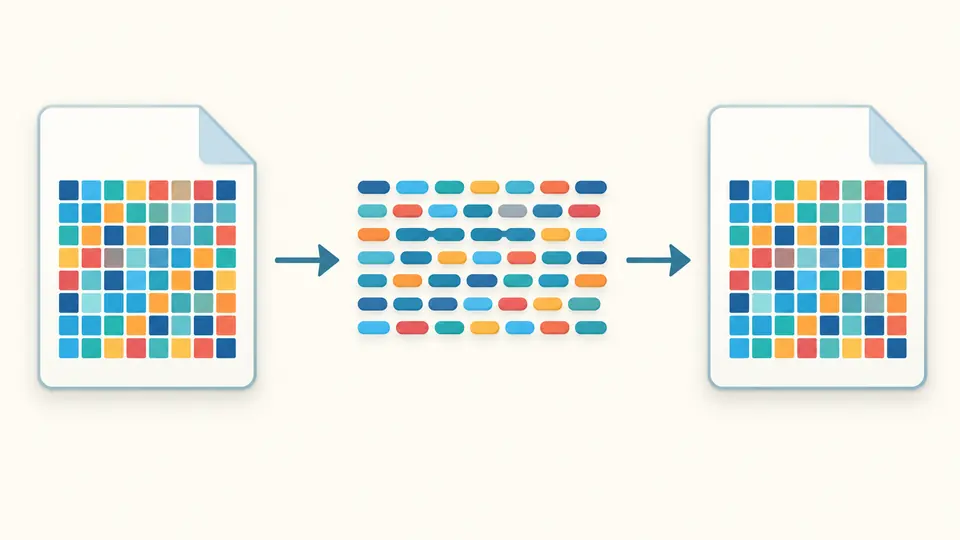
File to Base64 lets a small attachment cross a text-only boundary and return as a file. The binary download uses the full byte sequence without first interpreting it as text. Null bytes and non-UTF-8 sequences remain part of the file.

File bytes become a Base64 representation and return as the same bytes.

Separate conversion from image display

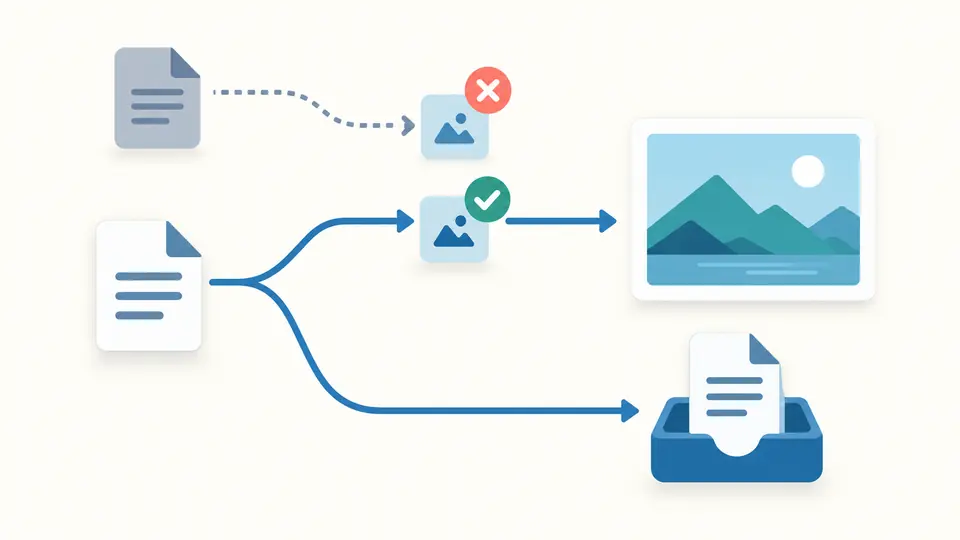
Decoding successfully does not imply that the content should be rendered. Preview starts off and only supports bounded static PNG, JPEG and WebP files. A blocked preview does not prevent downloading the decoded file.

An optional image preview is checked separately from the complete file download.

Check the representation before exporting

01

Choose the input format explicitly

Raw Base64 has no header. Select Data URL for data:type/subtype;base64,payload without parameters. Decoding takes MIME from that header, while raw input uses the MIME field. The tool does not silently switch formats.

02

Watch for a current result

Automatic conversion waits 350 ms after changes. Turn it off to run manually, including with Ctrl/Cmd+Enter. Changes make old results stale immediately, blocking copy and download until the next successful conversion.

03

Review changes before applying them

Replacing a file, loading the example, clearing and reversing show a preview with byte and text counts. Apply commits the replacement. Undo restores the previous inputs, options and result once, including its previous freshness state.

Treat bytes and metadata separately

Three complete export forms

Copy provides encoded text, TXT saves that representation and Download file exports the bytes. The display stops at 20,000 text units; all three export actions use the complete current result.

Normalize after decoding

The result shows canonical standard Base64 with required = padding. Its raw or Data URL representation follows your selected format. The padding switch affects encoding only; decoding does not preserve an unpadded spelling.

Allow specific whitespace

Ignoring whitespace removes only SP, TAB, CR and LF from encoded input. Other space characters remain invalid. The result reports how many allowed whitespace units were removed.

Name the download without transcoding

Choose a filename and MIME metadata for the download. Neither an extension change nor a new MIME declaration converts the file format or proves that the bytes match the declared type.

Accepted inputs and practical limits

Standard alphabet and strict trailing bits
Only standard Base64 with + and / is accepted; Base64URL using - or _ is rejected. Unused trailing bits must be zero. For example, Zh== is invalid even though a permissive decoder might recover f.
Use exact padding or none
Zg== and Zg are valid, but Zg= is not. Embedded equals signs, excessive padding and a data length of one modulo four are errors. The tool does not patch damaged encodings.
No automatic header repair
Data URLs need an explicit MIME type without parameters, percent encoding or header whitespace. MIME values are limited to 127 ASCII characters and normalized to lowercase. Remote URLs are not fetched.
Limits apply to the entire value
Files and decoded results are limited to 600,000 bytes. Encoded input allows 1,000,000 UTF-16 units including header and whitespace. Empty files and manually converted empty raw data are valid, producing zero bytes.
Preview has tighter limits
Static PNG, JPEG or WebP requires matching MIME, at most 200,000 bytes, 4,096 pixels per side and 4,000,000 pixels total. Animated images, SVG, PDF, HTML and other media are not displayed. They may still be converted and downloaded.
Encoding provides no content protection
Base64 does not encrypt or compress. Preview checks are neither a virus scan nor a file-safety guarantee. Batch processing, persistent drafts and automatic file-format identification are outside this tool’s scope.

File to Base64 questions

Why is the MIME type missing from my Base64 URL?

Raw Base64 contains no type metadata. File to Base64 can add a Data URL header during encoding. When decoding, select the Data URL representation only for a complete header; for bare data, choose raw and enter MIME separately.

How can I find image file size from a data URI in JavaScript?

The encoded character count is not the file size: the header and padding contribute differently. As a browser alternative, decode the data URI here and read the byte count. Supported static image previews also show pixel dimensions. This page does not inspect JavaScript source.

Why does KineticJS toDataURL() produce a padding error in Python?

Possible causes include passing the header to a raw decoder or damaged padding; the exact cause needs the original code. Check the full Data URL in the matching format here. Exact or omitted padding is accepted, partial padding is not. This is an input check, not a Python or KineticJS debugger.

How do I write decoded Base64 data to a file?

Choose the decoding direction, select the input format and set a filename. After conversion, Download file saves the bytes directly. File to Base64 provides this browser alternative to writing a file in code; it does not debug a program’s file handling.

Can I tell whether a Base64 string contains a file and identify its type?

Base64 represents arbitrary bytes, so the string alone does not prove a file type. MIME is also only a declaration. The limited image preview checks supported signatures but does not provide general format detection or a security analysis.

Missing an edge case?

Try File to Base64

Start File to Base64 with a small file. Check the representation and byte count, review the reverse operation before applying it, then export the full result.