Prepare import batches

CSV splitter

Choose one UTF-8 CSV or TSV file, set a split rule and inspect the generated parts.

CSV splitter

Source file

Choose a file or load the example, then split.

UTF-8 only. Input and total output each allow 128 MiB; one record 1 MiB; 1,000 columns; 256 files. Output Blobs and ZIP need additional memory.

Split files

No generated files yet.

The file is read and processed in this browser; no data is uploaded.

Split settings

Choose a file or load the example, then split.

An import form may accept your columns yet reject the number of records. The CSV splitter makes smaller batches without opening the source in a spreadsheet or retyping column names.

A physical line is not always a table record: quoted cells can contain line breaks. Splitting follows parsed records, so an address or multiline note stays with the rest of its row.

Why use this CSV splitter

Keep each batch ready to import

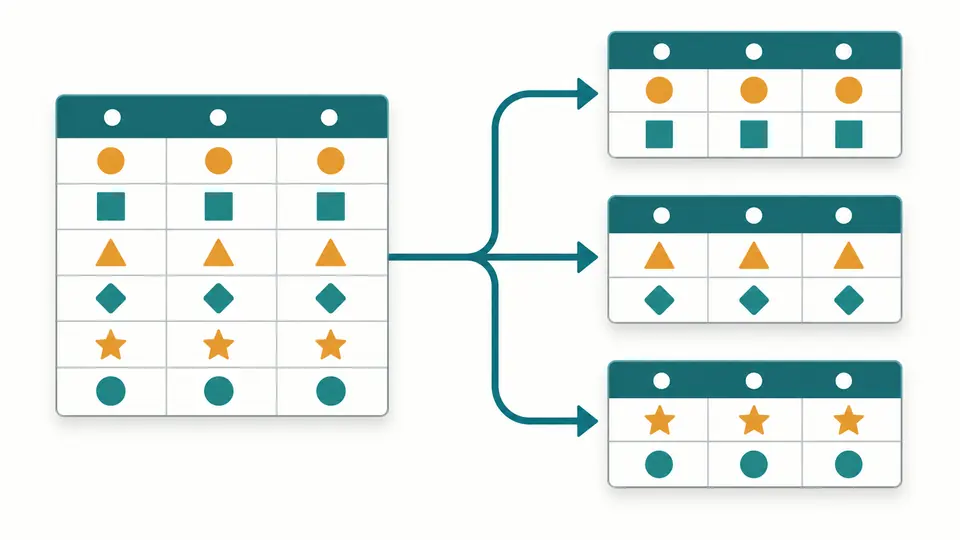
The CSV splitter repeats the first record as a header when that option is enabled. A limit of 1,000 means 1,000 data records, plus the header; the final batch may contain fewer records.

One source table becomes several smaller tables with the same header.

Send each group its complete rows

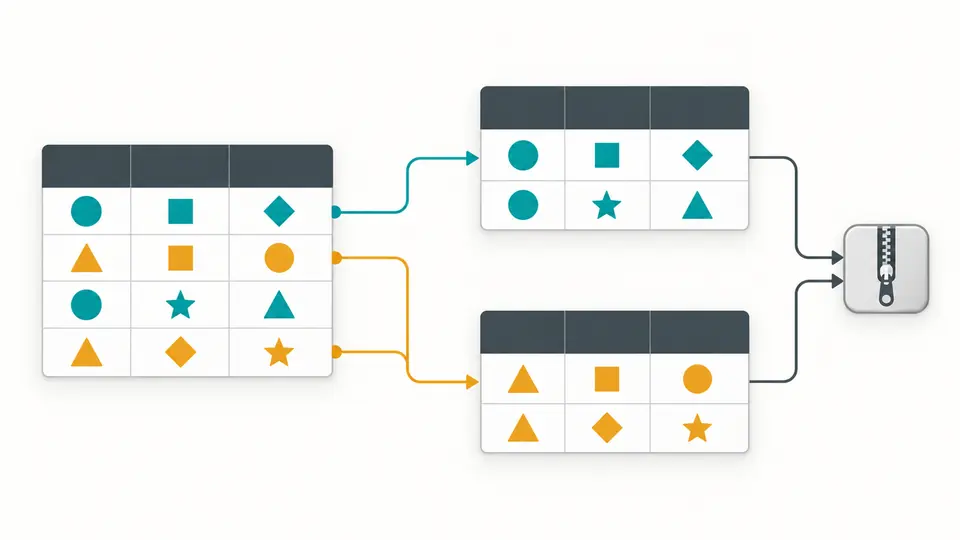
Split CSV by column to collect equal values even when their rows are scattered through the source. A region or status determines the group, while every original column remains in each output.

Colored values in one column route complete rows into matching groups.

Check the boundary before you run

01

Confirm encoding and the first record

Select the actual delimiter and decide whether the first record names the columns. UTF-8 with an initial BOM is accepted. Preview a replacement before applying it; undo restores the previous source, options and results.

02

Choose the constraint your importer uses

Split CSV by rows for a record limit, or split CSV by file size for a byte target. The default is 1,000 records; size mode starts at 1 MiB. Column positions start at 1, including when headers repeat.

03

Run once, then inspect a part

Press Split or Ctrl/Cmd + Enter. A setting change requires another run and disables stale downloads. Check counts and warnings before downloading a selected CSV or the complete ZIP.

Three ways to divide a table

Count complete data records

Quoted commas and line breaks remain inside their fields. The header does not consume the per-file record allowance. A header-only source produces one file with zero data records.

Aim for an output byte size

The target includes UTF-8 CSV bytes and repeated headers. A record that cannot fit with its header goes into a separate oversized part with a warning, without being cut.

Group exact text values

Matching preserves case, spaces and leading zeros: 001 and 1 are different groups. Empty values can form a group. Names such as part-001.csv keep group text out of file paths.

Review a bounded preview

Each part shows its first 5 data records, first 10 columns and at most 200 characters per field. Downloads retain all fields and records. The ZIP uses STORE packaging without compression.

File limits and preserved values

Two separate 128 MiB budgets
Raw input and cumulative output each allow 128 MiB. Repeated headers count toward output. These are byte limits, not a RAM guarantee: parsing, output Blobs and ZIP packaging need extra memory.
Bounded records, columns and parts
One logical input record may use at most 1 MiB; the table allows 1,000 columns and up to 256 generated files. To split a large CSV file into fewer pieces, increase the record or size target.
Strict UTF-8 and consistent CSV
Convert GBK, Shift_JIS and UTF-16 to UTF-8 first. Invalid quoting and inconsistent field counts stop the task. Empty files and BOM-only files are rejected; empty or duplicate header cells are allowed.
Strings remain strings
There is no type inference, trimming, sorting or date bucketing. Output uses UTF-8 and LF with CSV escaping as needed, so original quote style and line endings can change. Formula-like values are reported and left unchanged.
A file workflow with explicit execution
Only one local CSV or TSV file is accepted; there is no paste, URL, workbook or remote-source input. Splitting does not modify that file. Cancel stops processing, and failed tasks expose no partial downloads.

CSV splitter questions

Does every part keep the header?

Yes, when the header option is enabled. The CSV splitter repeats the first record in each part. If the source has no header, disable the option so the first record remains ordinary data.

What happens when I split by a column?

All records with exactly the same value at the chosen position go to one file. Other columns stay intact. This groups full rows; it does not break a cell into more columns.

Can I download all the parts together?

Yes. Download the ZIP to collect every generated CSV, or choose one part for an individual download. STORE packaging adds archive overhead and does not compress the CSV contents.

Will commas or line breaks inside cells break the output?

Properly quoted cells are parsed as a single field, including embedded commas, escaped quotes and line breaks. Malformed quoting causes an error instead of a silent split in the wrong place.

How large can the source be?

The source may contain up to 128 MiB of raw bytes, with a separate 128 MiB total-output budget. A single record, column count or number of parts can reach its own limit earlier. Browser memory may also be exhausted.

Found an unexpected split?

Prepare your next import batch

Use the CSV splitter with the example to compare record, size and value grouping, then select your own file and check the resulting counts.