CSV / TSV

CSV editorreview each change before applying

Paste delimited text or read a file, parse it, then review your cell edits before applying them.

CSV editor

CSV / TSV source

Your data is processed in this browser, without upload or storage.

Editable table

#Column 1: text (hint only)Column 2: text (hint only)Column 3: text (hint only)
1
2
3
Showing 3 of 3 records
Parsing and export

Applies to file bytes only. Choose an encoding, then read the file again; pasted text cannot be re-decoded.

Records: 3 · columns: 3 · delimiter: Comma

A product feed can fail because one description contains an unclosed quote or an identifier loses its leading zeros. This online CSV editor gives each value its own cell so you can correct the record without counting separators by hand.

Use the table as a CSV viewer before an import, or edit CSV files containing test fixtures and contact exports. Column hints describe what values look like; they never turn a long ID into a rounded number or a date-like string into a date.

Why use this CSV editor

See the old and new values together

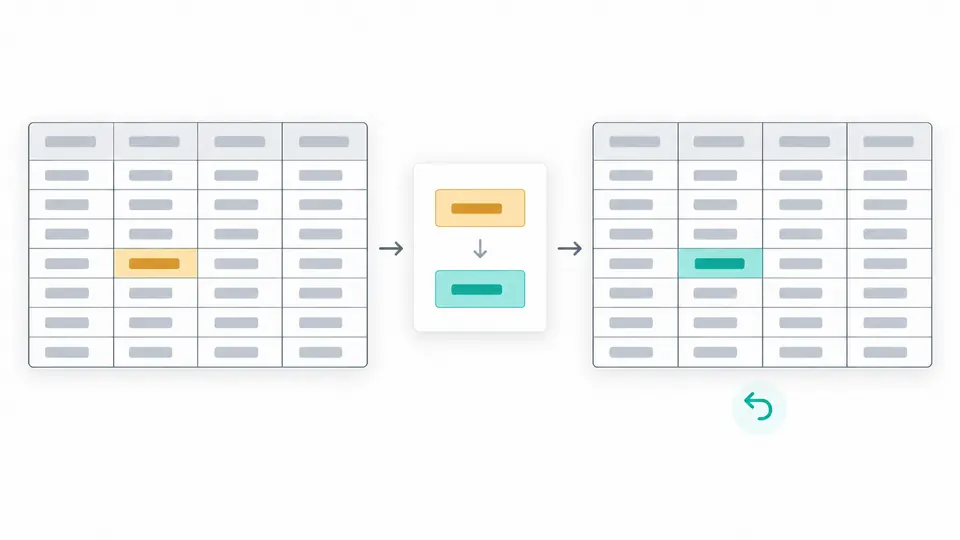
Fixing a customer code should not quietly rewrite another field. The CSV editor keeps cell edits as drafts, shows their before-and-after values and counts the changed cells. Apply the preview when it is correct; one undo restores the previous source and table.

A cell value changing from a draft to a reviewed change, with an undo path

Find the source of a shifted column

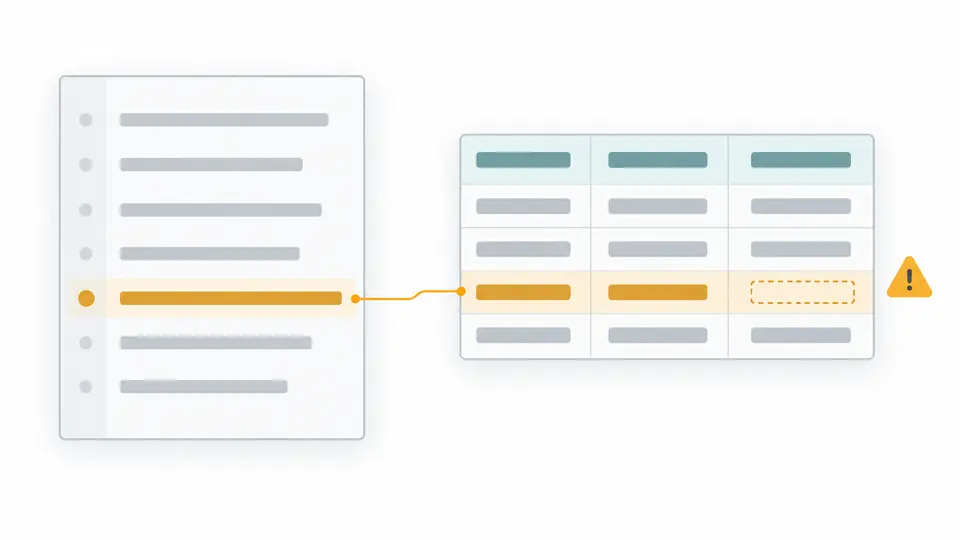
A missing field and an unclosed quote need different repairs. Diagnostics identify source line and column positions and report expected versus actual cell counts. Empty records are retained, so a blank line cannot silently disappear from the imported data.

A CSV record with a mismatched cell count linked to its source line

Check the read settings before editing

01

Decode the file deliberately

UTF-8 is the default for files. Choose another supported encoding and read the file again if the text is wrong; the selection alone does not re-read it. Each file read creates a replacement preview. Apply that preview, then parse. Apply or discard cell drafts before re-reading.

02

Confirm the table shape

Run Parse and validate, or press Ctrl/Cmd+Enter. If delimiter detection is uncertain, select comma, tab, semicolon or pipe and parse again. The header setting changes display and type hints; it does not remove the first record or merge duplicate header names.

03

Apply drafts and inspect all records

Preview changed cells before applying them. The table reveals 50 records at a time, including a header record; the shown count is not an export limit. Resolve source errors and parse stale input before downloading the complete table. Undo also restores the previous source.

Inspect values without guessing their types

CSV and TSV in one table

Read comma, tab, semicolon and pipe separators with double-quoted fields. Automatic detection supplies a suggestion, while manual selection resolves a file whose punctuation allows several interpretations.

Position-based header editing

Edit any displayed cell, including an empty or repeated header. Columns retain their positions rather than being stored under unique names, so two columns called name remain two columns.

Column hints without conversion

See empty, text, number-like, boolean-like or mixed hints. These observations can reveal an unexpected value in a column, but they are not a schema validator and never change stored strings.

File bytes available for another read

Try UTF-8, UTF-16LE/BE, GB18030, Shift_JIS or Windows-1252 against the original file bytes. Invalid byte sequences fail decoding instead of being replaced silently. A pasted string has no original file bytes to reinterpret.

What the saved file preserves

Strict quoting and equal record width
Double quotes enclose fields; write an internal quote twice. Quoted separators and CR, LF or CRLF remain inside a value. Empty records are not skipped. Unequal widths and malformed quoting stop a successful parse; single-quote and custom escape dialects are unsupported.
A bounded editing session
The original file and UTF-8 representation of pasted input each have a 2 MiB limit. The table accepts at most 2,000 records including its header and 100 columns. Oversized input is rejected rather than silently truncated.
Cell values, not identical file bytes
Leading zeros, long integers and whitespace remain text. Export writes UTF-8 with CRLF record endings and the parsed separator; line breaks inside fields stay intact. Quoting can be rewritten, quote-all is optional, and downloads can include a UTF-8 BOM. The source editor preserves CR, LF and CRLF in untouched spans. Newly typed, pasted or reinserted line breaks may become LF; editing a table cell may normalize line breaks only within that cell. Edited spans are not guaranteed to retain their original bytes.
Focused edits, without persistent workbooks
This version does not add or delete rows or columns, sort, filter, load URLs or export other document formats. It does not save a workbook between visits. Download your result before closing or refreshing the page.
Warnings do not prove safety or encoding
Formula-like cells, including headers, are counted but never executed or changed. Encoding clues are suggestions, not guarantees. Inspect decoded text yourself; UTF-32 is unsupported. A file reread requires a preview and can be undone after application.

CSV editor questions

Will my file be uploaded?

No. File reading, parsing and editing happen in the current browser tab. The page does not send your file to a processing server or store your work for another visit.

What size of file can I edit?

The limits are 2 MiB for the file or UTF-8 input, 2,000 records including the header, and 100 columns. The CSV editor rejects an input beyond these bounds. For a larger dataset, prepare a smaller part before opening it here.

Can a cell contain commas and line breaks?

Yes. Enclose the field in double quotes, and represent an internal double quote with two quotes. The parser keeps quoted commas and embedded newlines in one cell; the exporter adds the quoting needed to read that value again.

Which separators can I use?

Comma, tab, semicolon and pipe are supported. Choose Tab for TSV or start with detection. When detection is uncertain, choose explicitly and check the table. The export uses the separator that was actually parsed.

Will my number formatting be preserved?

Text such as 007 or a long identifier stays exactly that text, without numeric rounding. CSV does not carry spreadsheet styles or display formats. Opening the downloaded file in a spreadsheet may convert values again, so import identifier columns as text there.

Does a valid record fail to parse?

Check the next file before importing it

Open the sample in the CSV editor, inspect a record, and preview a cell change before using your own export.