CSV tools

CSV to Markdownchoose the columns your readers need

Paste delimited text, check the header setting and export selected columns.

CSV to Markdown

CSV input

Input: 2 MiB UTF-8, 2,000 records including the header, 100 columns. Output: 2,000,000 UTF-16 characters.

Table result

Processed in this browser. Your input is not uploaded or stored.

Table options

Exported columns

Choose at least one column. Editing CSV, delimiter or header mode resets the column selection.

Paste CSV or apply the example to begin.

CSV to Markdown turns a spreadsheet export into a table for a README, an issue or a project note. A quoted comma belongs to its cell; replacing every comma with a pipe cannot make that distinction.

Use this CSV to Markdown converter to keep the fields your readers need and align each column separately. Your source stays available while you compare the generated syntax with a preview of the parsed data.

Why use CSV to Markdown

Put numbers beside their context

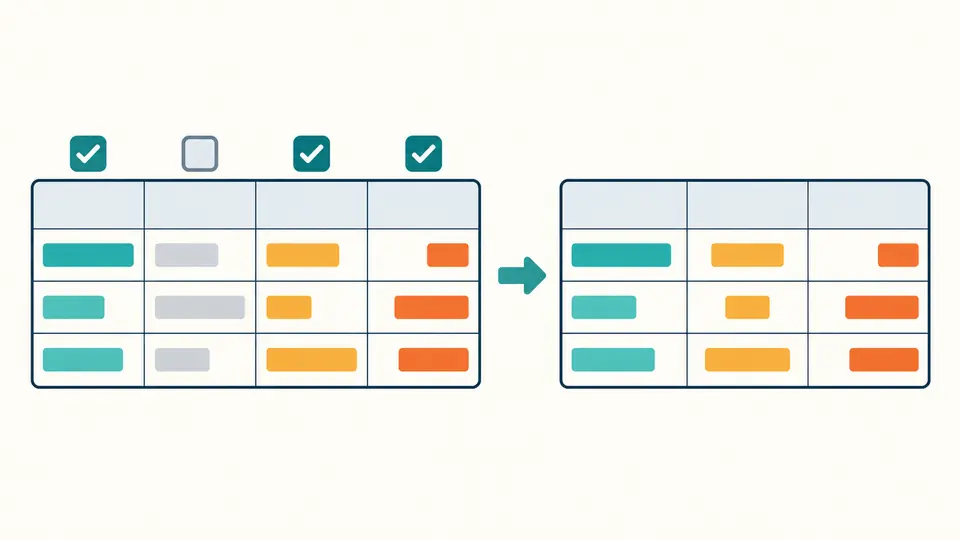
A report may contain ten fields while a release note needs only three. Select the identifier, description and count, then right-align the count independently. CSV to Markdown preserves the source column order and leaves excluded fields in your original input.

Selected table columns with independent left, center and right alignment

Separate literal tags from real line breaks

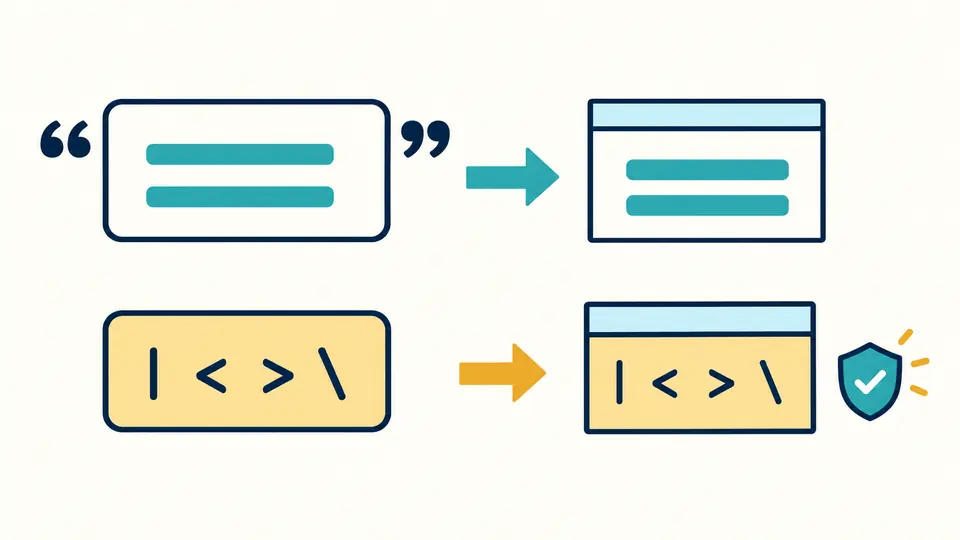
A description containing a pipe or a literal HTML tag should remain text. The exporter protects those characters before inserting its own line-break markers. A quoted multiline CSV cell remains one table cell instead of accidentally starting another row.

CSV cells containing a pipe, literal HTML text and a real line break

Check the details before exporting

01

Match the delimiter and the header

Spreadsheet clipboard data usually uses tabs. Choose Tab for that input instead of the default comma. Turn off the header option when the first row contains data; generated numeric column names keep that first record in the table body.

02

Choose when to refresh

Automatic conversion waits 300 ms after your last change. Switch it off for the Convert button or Ctrl/Cmd + Enter. Changing the source or parsing options resets column choices; changing output format keeps the current selection.

03

Inspect all rows without rendering them at once

The data preview starts with 50 rows and expands by 50. Copy and download still include the entire selected table. Any edit makes the previous result stale and disables export until conversion succeeds again.

From delimited records to document tables

Quoted CSV fields

Commas and line breaks inside double-quoted fields remain inside their cells. Doubled quotation marks become literal quotes. LF, CRLF and CR record endings are supported.

Independent column alignment

Set each selected column to left, center or right. The Markdown separator row receives the appropriate colons; HTML cells receive the same alignment. Choosing columns never deletes source fields.

Escaped cell text

Headers and values share the same escaping. Pipes, backslashes and Markdown emphasis or link markers are protected, while literal HTML becomes entity-encoded text. Real cell line breaks become generated <br> elements.

Two export syntaxes

Choose a GitHub Flavored Markdown pipe table or an HTML table fragment with a header and body. The source view exposes exactly the text that copy and download export.

Input requirements and rendering limits

Consistent rows are required
Every record must have the same number of fields. Malformed quotes and uneven rows stop conversion with a location. The converter neither repairs rows nor silently discards excess fields. Empty and repeated header text is allowed.
Keep a bounded text table
Input is limited to 2 MiB in UTF-8, 2,000 records including the header and 100 columns. Generated output is limited to 2,000,000 UTF-16 code units. Exceeding a limit stops export rather than truncating the table.
A data preview is not a renderer guarantee
Markdown tables require a compatible extension such as GFM. The destination may disable <br>, trim cell-edge spaces or link plain URLs and email addresses. Ordinary HTML whitespace can collapse. Keep the CSV if exact whitespace matters.
Cells stay text
HTML tags and Markdown formatting inside cells are not executed. Spreadsheet formulas are not calculated. Unsupported control characters and invalid Unicode are rejected; source CSV quoting and the initial BOM are parsed rather than reproduced.
Paste one source at a time
This page does not fetch URLs, accept file uploads, edit spreadsheet grids or convert Markdown back to CSV. At least one column must remain selected. The sample and clear actions require preview and Apply, with one-step undo.

CSV to Markdown questions

Can I paste cells copied from Excel?

Yes. Spreadsheet clipboard text is usually tab-separated, so choose Tab. The CSV to Markdown tool starts with comma selected. Check whether your copied range includes a header before converting.

What happens to a comma inside a quoted field?

It stays in that field. For example, "Doe, Jane" becomes one cell containing the comma. Use two consecutive quotation marks inside a quoted CSV field when you need a literal double quote.

How are pipe characters escaped?

A pipe in a header or value is escaped so it cannot create another column. Backslashes are protected too. The generated Markdown contains the escapes; the data preview shows the original cell text.

Can each column have a different alignment?

Yes. Select the columns to export, then choose left, center or right for each one. This changes the Markdown separator markers or HTML alignment without sorting rows or altering their values.

How large can the CSV be?

The input limit is 2 MiB of UTF-8 text, 2,000 records including a header and 100 columns. Output must also fit within 2,000,000 UTF-16 code units. A preview of 50 rows does not mean the export is limited to 50.

Did a CSV field produce an unexpected result?

Prepare your CSV to Markdown table

Use CSV to Markdown when documentation needs selected fields with dependable separators.

Check the delimiter, choose your columns and review the current source before pasting it into the destination.