Images, SVG & icons

Image converterConvert and compare locally

Drop up to 20 images, choose a target format, then inspect each result before saving.

Image converter

Source images

Drop PNG, JPG, WebP or AVIF images here.

Result preview

Choose or drop an image to begin.

Images stay in this browser tab; re-encoding may remove metadata.

Conversion options

AVIF input depends on browser decoding; output formats are tested separately. EXIF, ICC and colour may change after redraw.

Choose or drop an image to begin.

When a site needs lighter product photos and a design handoff contains a mix of PNG and JPG, an image converter is easier than reopening every asset in an editor. The same batch can become WebP while keeping each original available for comparison.

Use compress images for a smaller download, PNG to JPG for a broadly accepted photo, or a WebP converter for web delivery. This image converter reports when a new file actually grows instead of promising a saving it cannot measure.

Why use this image converter

This image converter shows the file you will actually save, including a larger result.

Read and write support are checked separately

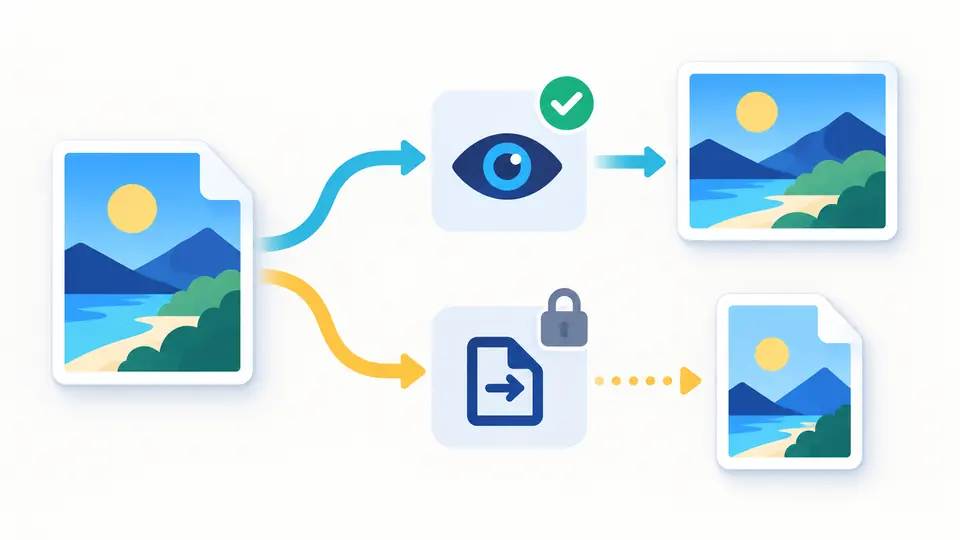
An AVIF may open in your browser even when Canvas cannot export AVIF. The image converter tests the encoded MIME first, disables unsupported targets and never gives PNG bytes an .avif name.

A static AVIF image splits into a visible preview and a guarded export path, illustrating separate decode and encode support

Transparency has an explicit outcome

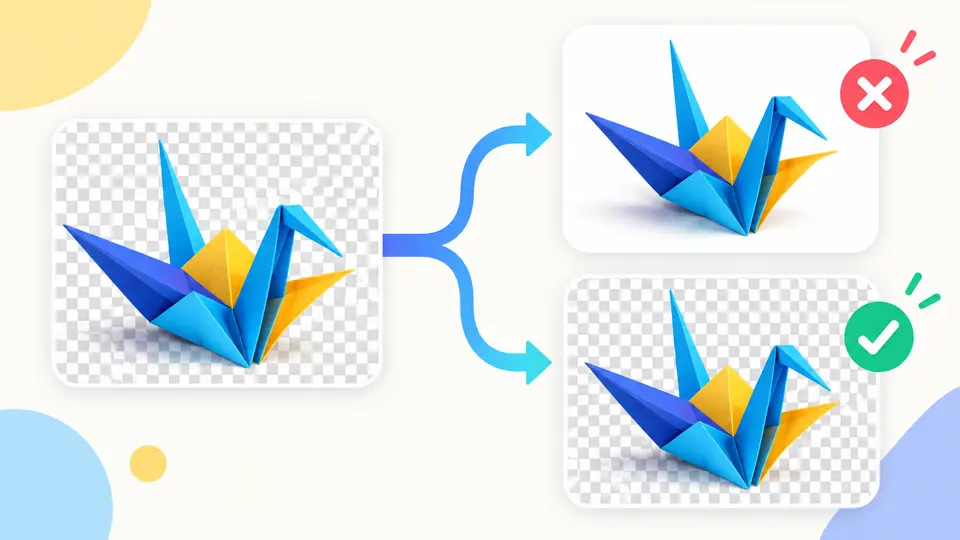
A transparent logo can stay transparent in PNG or WebP. For JPEG, choose a background colour before conversion and compare the original checkerboard with the flattened preview.

A transparent graphic over a checkerboard becomes a white background JPEG while the WebP path retains a transparent checkerboard

Three choices that change the exported pixels

01

Choose a static raster

Drop or select PNG, JPEG, WebP or AVIF files; mixed batches share one set of options. Animation and unsupported formats are rejected before they can silently lose frames.

  • The limit is 20 files, 20 MiB each and 40 megapixels per image.
02

Pick format and scale

WebP is the default only when the browser can encode it. Quality 82% affects lossy formats; a maximum edge of 0 keeps original dimensions, while a positive edge only shrinks.

  • PNG ignores the quality slider; JPEG uses a white background unless you change it.
03

Verify the result, then export

Press Convert or Ctrl/Cmd+Enter. Select any file to inspect its original and output previews, actual pixel dimensions, byte sizes and percentage change before downloading it or a ZIP.

  • Changing an option makes the old result stale and disables both download actions.

Format, size and batch controls in one place

Four static raster inputs

PNG, JPEG, WebP and AVIF inputs are checked from file bytes. A browser that cannot decode one reports that file as failed while continuing the rest of the batch.

Honest compression numbers

The result displays original and output bytes plus a saved or increased percentage. Compress images with quality and maximum edge settings, but judge the actual output rather than an estimated target size.

One ZIP without overwritten names

A mixed batch can be exported one file at a time or as a ZIP of successful results. If two source names collide after conversion, their output names receive distinct suffixes.

Preview before JPEG flattening

PNG to JPG fills transparent pixels with the selected colour. WebP conversion may preserve transparency, so inspect the result against the source before export.

What changes when an image is re-encoded

AVIF export depends on this browser
AVIF decoding and encoding are separate abilities. If the encoder returns PNG, AVIF is unavailable here; renaming the file would not convert its bytes.
JPEG cannot keep transparent pixels
Transparent PNG or WebP pixels are composited over the chosen colour, white by default. Save as PNG or supported WebP if alpha matters.
Metadata and colour may change
Canvas redraw can discard EXIF, GPS and ICC data and convert colour spaces. This is a format conversion, not a metadata preservation or certified privacy scrub.
No guaranteed smaller file
PNG is lossless and ignores quality. Even lossy re-encoding can grow an image; the tool reports the measured change instead of hiding it.
Only static bitmap conversion
Animated images, HEIC, RAW, SVG and PDF are outside this workflow. Max edge shrinks proportionally; it does not crop, stretch or upscale.

Image converter questions

What happens to a transparent PNG when I convert it to JPG?

JPEG has no alpha channel. This tool flattens transparent pixels onto the background colour you choose, white by default; the output preview shows the result.

Does converting an image reduce its quality?

Lossy JPEG, WebP and supported AVIF can discard detail. A higher quality setting changes that tradeoff; converting an already lossy image to PNG cannot restore lost detail.

Can I convert several images in one batch?

Yes. Select or drop up to 20 static files, apply one output format and settings to all, then download successful results individually or in one ZIP.

Are my images uploaded to a server?

No. Files are read, decoded and re-encoded in this browser tab. Downloaded results are created locally; nothing is sent by the converter.

Why can I open an AVIF but not export one?

Your browser may decode AVIF without a Canvas AVIF encoder. This page tests the actual encoded MIME and only enables AVIF export when it truly returns AVIF bytes.

Missing a size or a platform?

Use the image converter now

Drop a local batch into the image converter, compare true output sizes, and save only the files that meet your visual and byte budget.

Keep the original logo file for later edits.