Images / SVG / Icons

image resizer with a real crop preview

Choose local images, preview the crop, then set pixel or percentage output.

image resizer

Source images

Drop JPG, PNG or WebP images here, or paste an image.

Images stay in this browser; no image is uploaded.

Result preview

No processed image yet

Output options
Crop

Choose an image or try the example.

A product card may need a 1:1 thumbnail while the original photograph is wide. The image resizer lets you see which pixels a crop removes before you make that change.

For a folder of mixed-size pictures, the image resizer applies one width or percentage to each original independently. You can inspect the actual dimensions and bytes before taking the files. If you need a bulk image resizer, this workspace keeps each source’s proportions.

Why use this image resizer

See the lost area and the real output dimensions before you save.

A crop you can inspect first

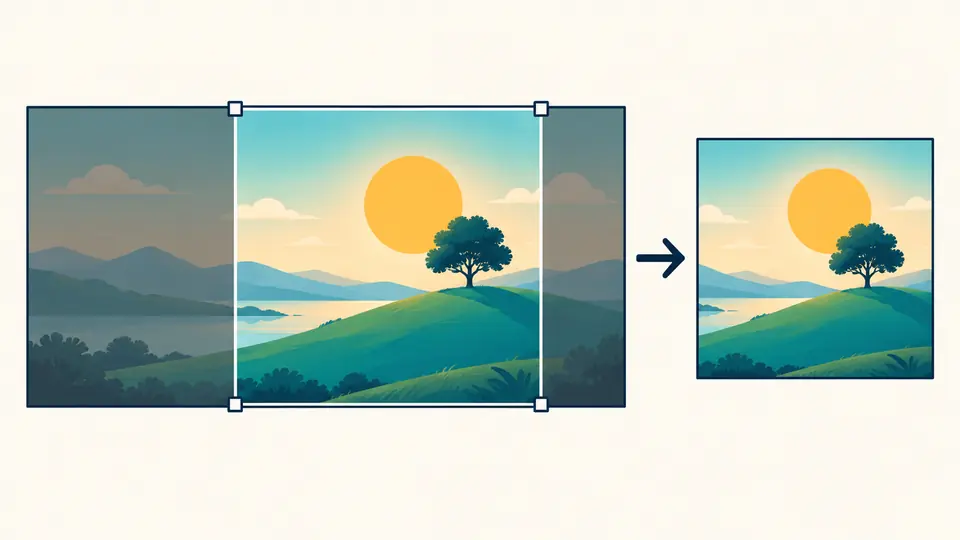
Drag the selection on a single image or enter exact source-pixel coordinates. For a batch, a fixed ratio takes the largest centered area of every file. The image resizer shows how many pixels fall outside those boxes before Apply.

One wide photo with a visible square crop box, discarded margins shaded, and the same subject in a square preview

Batch sizes stay honest

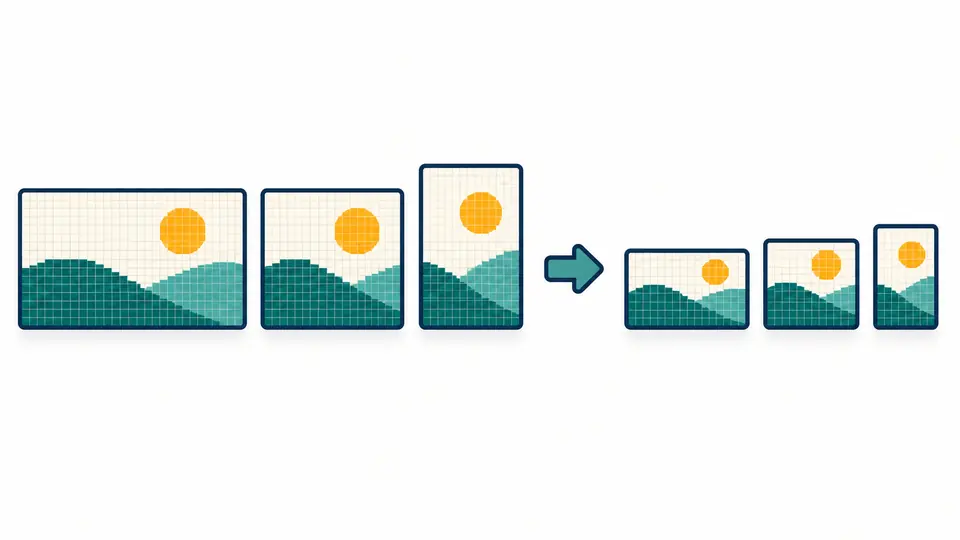
With proportions locked, a shared width uses each image’s own aspect ratio. Prevent upscale keeps smaller images at their actual resolution, and the result list reports each original size beside its final pixels.

Three differently shaped photos flowing to three proportional output sizes, with the smallest photo remaining at its native size

Check the crop, scale and export in the right order

01

Preview what will be removed

Turn on crop and select a ratio. On a single photo, move the box or edit X, Y, width and height in original pixels; on multiple photos choose a fixed ratio for centered crop.

  • Apply the crop only after checking the pixel count below the controls.
02

Choose the meaning of the target size

Pixel mode starts at the selected image’s native size; percentage mode applies to every image separately. Lock proportions prevents distortion, while Prevent upscale stops a small source being enlarged.

  • Ctrl/Cmd+Enter runs the current settings; changing them marks old output stale.
03

Read the actual output before downloading

The result panel shows original and final pixel dimensions and byte counts. A different encoded size is normal: output quality is a JPEG/WebP control, not a target KB value.

  • Download one selected file or ZIP all successful results.

Controls for real resize and crop jobs

Pixel or percentage targets

Set an exact width or height with proportional scaling, or apply one percentage to a mixed-size batch. Per-image calculations avoid stretching every source to one shape.

Crop with numbers and a box

The single-image crop accepts a draggable selection and source-pixel X/Y/width/height. Ratio presets cover square, 4:3, 16:9 and portrait 9:16; batch crop is centered.

Explicit format and quality

Keep the source format or output JPG, PNG or WebP. JPEG fills transparent pixels white; lossy quality defaults to 92, while PNG has no quality slider.

What changes, and what stays outside this tool

Only static browser bitmaps
JPG, PNG and WebP files are accepted. Animated GIF, SVG, HEIC and RAW are excluded because a browser canvas may discard animation or vector meaning.
No artificial detail or smart focus
Upscaling cannot invent detail. The default blocks enlargement; batch crop uses the center, not face detection, so inspect subject placement before Apply.
No network import or exact file-weight promise
There is no URL or cloud import. The quality control influences JPEG/WebP encoding but cannot promise a particular KB size; use the dedicated converter or compressor for that task.
Limits protect the browser
Up to 20 files, 20 MB each, 8192 pixels per side and 16.7 million pixels per image or result. Out-of-range files are reported individually rather than silently omitted.

Image resizer questions

How to resize the image?

Choose a local JPG, PNG or WebP. Pixel mode starts from its actual dimensions; enter a width or height, leave proportions locked, then run Process images. The image resizer reports the new width and height. You can resize image online here without sending the file away.

How to crop the image?

Enable Crop, drag the visible box or enter X/Y/width/height, then Apply crop. The original file on disk is untouched; Undo restores the previous in-memory working image once.

How to resize the image to a specific aspect ratio?

Choose a 1:1, 4:3, 16:9 or 9:16 crop ratio before applying. The box removes pixels outside that shape; proportional resize then gives the selected pixel width without stretching.

How to center the image using transparent margins?

This tool does not add transparent margins. It crops to a selected box or scales existing pixels; a dedicated canvas editor is needed to extend a background.

How to resize multiple images at the same time?

Select or drop up to 20 files. A shared pixel width preserves each source’s own ratio, or percentage mode scales each independently. Download all successful outputs in one ZIP.

Need another crop or resize option?

Use the image resizer on your next batch

Try the image resizer with the built-in example, check the crop count, and save only after the dimensions look right.

Your original local files remain unchanged.