Text and Strings

Text line toolsbuild your list, step by step

Reorder the steps to see how each operation changes your list.

Text line tools

Input text

Result rows

Text stays in this browser; it is not uploaded.

Ordered steps

  1. 1. Trim lines

  2. 2. Remove empty lines

  3. 3. Remove duplicate lines

CRLF, CR and LF are input breaks; output uses LF. Trailing breaks and split separators preserve empty rows. The empty marker and margin numbers are display aids only.

Up to 20 steps, 50,000 rows and 1,000,000 UTF-16 units at every stage; text parameters up to 1,000 units. Limits reject the entire run.

Enter text or apply an example. Empty input has zero rows.

Text line tools help when copied lists contain repeated items, padded values and unwanted rows. Keep the original on the left while you decide which cleaning operations belong before sorting.

A repeatable sequence matters more than a single cleanup button: numbering before deduplication can preserve entries that would otherwise match. Here the steps remain visible and can move up or down.

Why use these text line tools?

Order changes what survives

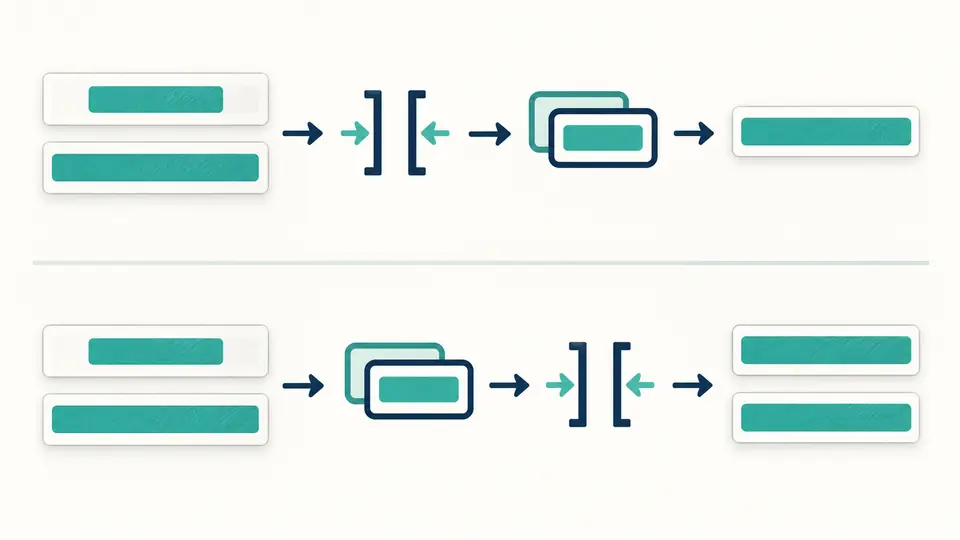
With text line tools, trim lines before removing duplicates to compare their cleaned values. Move deduplication above trimming and differently padded originals can survive as equal-looking output rows. Each step reports its input and output count.

Two processing sequences change whether padded duplicate rows remain in the final list.

Try a result before replacing the source

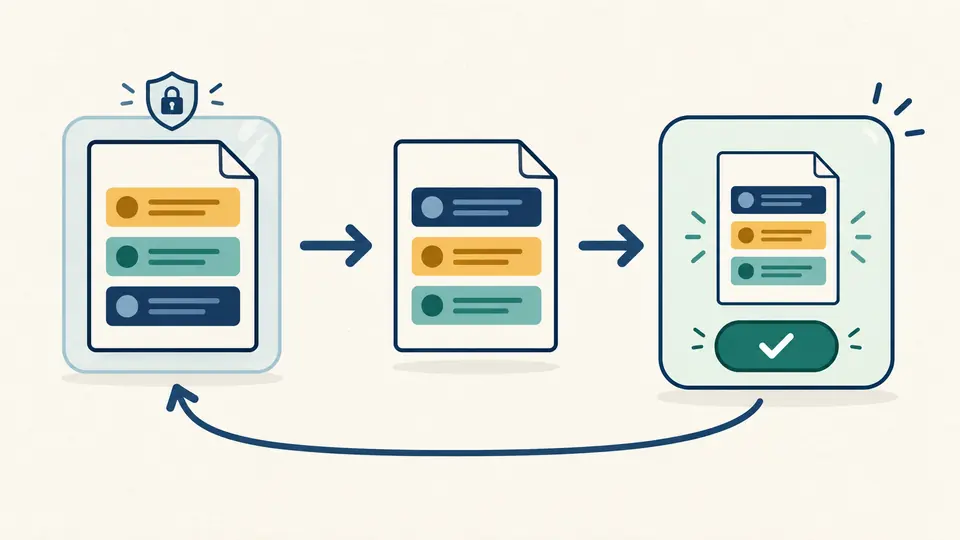
Reverse lines or shuffle lines while the input stays intact. A fixed seed repeats the same shuffle, and advancing it requests a different arrangement. Using the result opens a separate replacement preview with an apply button and one undo.

An original list stays in place beside an altered result, followed by a replacement preview and an undo arrow.

Choose a sequence you can verify

01

Check the starting cleanup

The default steps trim both ends, remove empty rows, then remove duplicate lines while keeping the first occurrence. Delete any step to preserve that part of the source, or add the same operation twice with different parameters.

02

Move operations before running

Use the step controls to put filtering before numbering, or split a joined list before sorting. Automatic mode waits 350 ms after a change. Turn it off to use Run or Ctrl/Cmd+Enter; any calculation change disables export immediately.

03

Inspect counts and apply deliberately

The result initially shows 50 rows, with more available in batches; copy and download always include all rows. Example, Clear and Use result require preview and application. Undo restores the previous input, steps, mode and result.

From copied rows to a usable list

Compare and rearrange

Sort lines by UTF-16 code units or choose English natural comparison for digit groups such as item2 and item10. Reverse changes row order only. Deduplication retains the first original spelling, optionally matching lowercase forms.

Select the rows that matter

Keep or exclude rows containing a literal substring. A dot is a dot, not a regular expression. Head and tail retain a specified count in its existing order; a count of zero produces an empty list.

Build formatted entries

Add a literal prefix or suffix, or number the current rows with a starting integer, increment and separator. Join entries with a delimiter, or split the current LF text with an exact separator; consecutive separators preserve empty entries.

How lines and limits are handled

Line endings and empty entries
CRLF, CR and LF separate input rows; output uses LF. A trailing newline adds an empty entry, while an initially empty input has zero. Steps retain empty entries, so trimming a space then adding a prefix still yields that prefix. Zero rows and one empty row both export as empty text; reusing that text starts with zero rows.
Explicit comparison semantics
Trimming follows JavaScript whitespace rules; removing empty rows can optionally include whitespace-only rows. Ignore case uses lowercase without Unicode normalization or full-width folding. Natural sorting uses fixed English collation with numeric digit groups, not arithmetic parsing of decimals or negative numbers and not a local-language dictionary.
Bounded work with no partial exports
Input and every intermediate result allow 1,000,000 UTF-16 units and 50,000 logical rows, across at most 20 steps. Each text parameter is limited to 1,000 units. Exceeding a limit rejects the result and identifies the step when applicable. Isolated surrogates are rejected before UTF-8 export.
Literal parameters, deliberate scope
Join and split decode only \n, \r, \t and \\. An empty join delimiter is allowed; an empty split delimiter or filter query is an error. Prefixes, suffixes, number separators and filters are single-line literals. There is no regular-expression execution, CSV quoting parser, file import, recipe storage or cryptographic shuffle.

Text line tools questions

How are repeated entries identified?

Text line tools compare complete rows and retain the first occurrence in its original position. A separate trim step can remove edge spaces before that comparison. Move it after deduplication to compare the original padded values instead.

Can matching ignore letter case?

Enable Ignore case on a deduplication or filtering step. Matching uses JavaScript lowercase, while the surviving row keeps its spelling. This does not merge full-width letters with ASCII or normalize composed accents.

How are numbers ordered?

The default character-code order places 10 before 2. English natural comparison treats digit groups numerically, which suits filenames such as item2 and item10. It is not a numerical parser for negative values, decimals or locale-specific formatted numbers.

How large can a list be?

The ceiling is 50,000 logical rows and 1,000,000 UTF-16 units, including every intermediate stage. A short input can exceed the output limit when prefixes or separators expand it. The whole run fails rather than silently cutting off the end.

Does pasted content leave my device?

The pipeline runs in this browser without uploading the input. Copy and download happen only when you choose them. Refreshing the page resets the working input and steps because this tool does not store a recipe.

Did a step behave unexpectedly?

Return to text line tools

Use text line tools to refine the sequence, check the complete counts and save the list that matches your task.