Text & bytes

Line ending convertercheck what actually changes

Normalize text or a batch of files, inspect their bytes, and keep control of encoding changes.

Line ending converter

Input

UTF-8; BOM: none; 0 bytes. CRLF 0, LF 0, CR 0; NUL 0; final newline: no.

Result

No result yet.

Text and files are processed in this browser; no input data is uploaded.

Up to 20 files: 2 MiB each, 16 MiB total input, 32 MiB total output.

Conversion options

A recognized BOM takes priority. Text input is always UTF-8. No encoding is guessed from NUL bytes.

Enter text or choose files to begin.

Copy transfers text, not encoding or an added BOM. Download preserves the displayed output bytes.

BOM shows the actual byte prefix. If two markers existed, removing one can leave a prefix belonging to the remaining text.

A script can look identical in two editors while its line endings make it fail on another system. Line ending converter counts CRLF pairs, lone LF and lone CR separately, so a mixed file is visible before you choose a target.

A pasted string cannot prove how the original file was encoded. Use the file entrance when byte order or a leading signature matters. Text input is UTF-8; files retain their detected or explicitly selected encoding unless you confirm a change.

Why use Line ending converter

Normalize separators without cleaning the lines

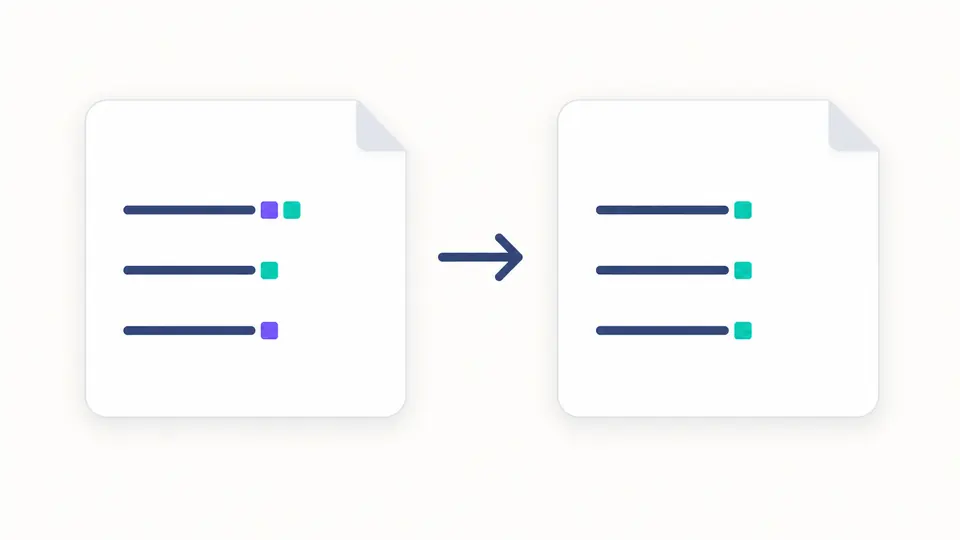
Line ending converter changes each existing CRLF, LF or CR to the selected ending. Spaces, tabs, empty lines and whether the file ends with a newline remain intact. Choose Preserve to inspect the file or to change only its BOM.

Three identical content rows keep their positions while three different ending markers become the same marker

Distinguish a signature from a character

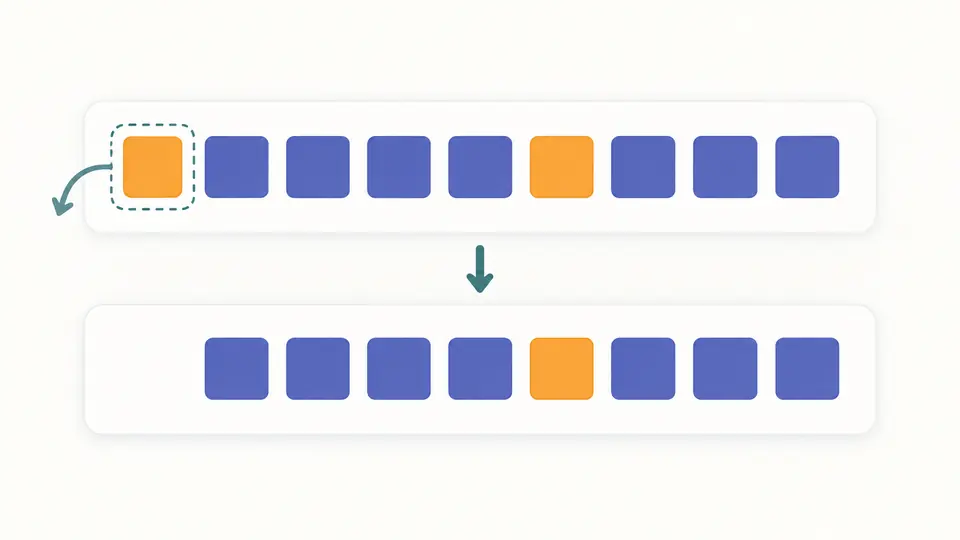
Line ending converter treats only the first encoding signature as a BOM. A second or embedded U+FEFF remains text. Compare the actual input and output hex: removing the first signature does not authorize deleting every matching sequence in the document.

The first highlighted marker is removed from a byte strip, while an identical marker inside the remaining content stays in place

Choose the source before the target

01

Read original files for byte evidence

Choose up to 20 files and review the replacement before applying it. A BOM determines UTF-8 or UTF-16 byte order. Without one, UTF-8 is the default; explicitly select UTF-16LE, UTF-16BE or Windows-1252 when you know the source encoding. NUL bytes are not used to guess.

02

Separate newline, BOM and encoding decisions

The default is LF with the BOM and file encoding preserved. CRLF to LF and LF to CRLF only change existing separators. To encode a non-UTF-8 file as UTF-8, select that output and check the confirmation. Editing source data or a conversion option clears that confirmation.

03

Check bytes before taking the result

Text previews expand by 10,000 characters; byte previews by 256 bytes. Downloads always include the entire current output. Automatic mode waits 350 ms; turn it off to use Convert or Ctrl/Cmd + Enter. An edit immediately expires exports until a new conversion succeeds.

Inspect the parts that an editor hides

Independent counts for mixed endings

The line ending detector counts CRLF as one separator, rather than one CR plus one LF. Input and output statistics also show NUL characters and whether the final character is a line ending. U+0085, U+2028 and U+2029 remain ordinary content for this operation.

BOM removal and addition with encoding rules

Use this BOM remover with Preserve endings for a signature-only change. UTF-8, UTF-16LE and UTF-16BE receive their matching signatures. Windows-1252 has no BOM; adding one requires a confirmed conversion to UTF-8. Add does not stack another marker over the first recognized signature.

Strict, reversible character handling

Malformed UTF-8, odd UTF-16 byte lengths and unpaired surrogates fail instead of becoming replacement characters. Windows-1252 follows the WHATWG mapping, including its reversible C1 values. No trimming, Unicode normalization, character substitution or formula evaluation is performed.

A complete batch with distinct names

Every file uses the same conversion options while BOM detection runs independently. Numbered safe names prevent duplicate filenames from overwriting each other in the ZIP. If one file fails, the whole batch is unavailable for export; no skipped file is presented as a complete success.

The boundaries of a byte-level text task

Bounded inputs and complete outputs
Each input is limited to 2 MiB, a batch to 20 files and 16 MiB, and combined output to 32 MiB. These are memory budgets. Encoding and CRLF expansion may enlarge output; exceeding a limit rejects the operation. Empty files and files containing only a BOM are valid file inputs.
Supported encodings are explicit
UTF-8 and UTF-16LE/BE are supported; Windows-1252 is an explicit no-BOM fallback. UTF-32 signatures are recognized and rejected. There is no GBK, Shift_JIS, arbitrary charset detection, binary repair, Office parsing or archive import. A wrong single-byte fallback can produce reversible but incorrect characters.
Every actual separator is in scope
The converter does not parse CSV quotes, source-code strings or document structure. Newlines inside them also change. It neither adds a missing final newline nor removes a present one. Blank lines, spaces, tabs, NUL and interior U+FEFF are preserved.
Clipboard text is not a byte export
Browsers or the source application can normalize line endings before pasted text arrives. This editor preserves the endings it receives, but cannot reconstruct earlier bytes. Copy transfers result text without an added file signature; it cannot carry the original encoding. Download is the byte-exact output.
Review replacements and keep one undo
Example, clear and file replacement show the affected input sizes before Apply. Undo restores both inputs, options, automatic mode, confirmation and the prior result. Switching text/file entrances preserves their separate inputs. Conversion never overwrites the original file. Example restores all defaults.

Line ending converter questions

Which line ending should I choose?

Follow the receiving program or project requirement. LF is common in Unix-like environments, CRLF in Windows-oriented workflows, and CR in some legacy files. Line ending converter defaults to LF, but modern applications can accept more than one style. Inspect the target rather than relying on the operating system alone.

Why can pasted CRLF text be detected as LF?

The source application, clipboard path or browser may already have converted it. The editor retains raw CRLF and CR delivered by a paste event, but cannot recover characters removed beforehand. Select the original file when the distinction matters.

How does Git autocrlf affect line endings?

Git can normalize text in its index and choose different endings in the working tree according to attributes and configuration. A downloaded file may therefore change again when added or checked out. Review the repository’s text/eol attributes and core.autocrlf setting; this page does not change Git configuration.

Should I remove the BOM?

It depends on the consumer. Some programs accept or use a UTF-8 signature for detection; others require its absence. UTF-16 byte order may rely on a BOM unless specified elsewhere. Preserve is the default. Remove strips only one leading signature, so two consecutive markers leave one visible byte prefix.

Will normalization alter the text content?

Only actual CRLF, LF and CR separators are normalized, plus the selected leading BOM handling and any confirmed UTF-8 conversion. All other characters are kept, including whitespace and Unicode separators outside those three forms. Newlines inside quoted CSV values are not exempt.

Found unexpected bytes in a result?

Try Line ending converter on a sample

Compare the separator counts and the first bytes before downloading files for the receiving application.