01
Choose the smallest cleanup
The default removes ASCII spaces and tabs at every line end. Enable leading trim only when indentation can go. The example and clear buttons show a replacement preview before changing the source.
Text and Strings
Start with line tails, inspect the marked preview, then apply only the changes you need.
··alpha··beta··␍↵
⇥item⇥value·↵
price⍽10␍↵
····nested··␍↵
··alpha··beta␍↵
⇥item⇥value↵
price⍽10␍↵
····nested␍↵
Shown: 5 / 5 lines, 49 UTF-16 units. Export always includes the full result.
· space ⇥ tab ⍽ NBSP ↵ LF ␍ CR ␍↵ CRLF. Highlighted marks are display only.
Text stays in this browser; it is not uploaded.
Order: NBSP → line ends → line starts → repeated spaces → tabs.
No syntax parsing: even line-tail spaces may be meaningful in Markdown. Tab expansion affects the whole text; compression affects indentation only.
Input/output: 1,000,000 UTF-16 units, 50,000 lines. Line endings remain unchanged; download uses UTF-8.
3 changed lines · 5 removed / 0 added · 54 → 49 characters
Removed/added count step consumption and production, not a minimal diff. Before/after count Unicode code points.
A whitespace cleaner helps when copied text looks identical but behaves differently in a search, a diff or an import field. An ordinary space, a tab and a non-breaking space can leave similar gaps while carrying different meanings.
Keep the source beside the result while trying one option at a time. The starting example includes indentation and mixed line endings: only its trailing whitespace is removed by default.
This whitespace cleaner leaves leading spaces and tabs intact unless you explicitly trim the start or convert indentation. The preview preserves each original line break, so a Windows line beside a Unix line is not silently normalized.
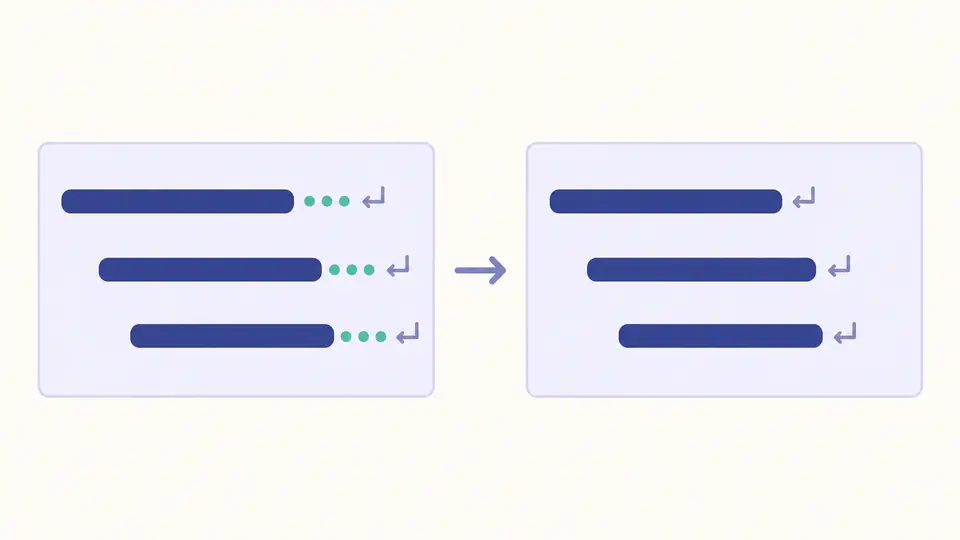
Colored marks reveal ordinary spaces, tabs and NBSP separately. Turn on just the conversion you need; the result remains separate from the source until you apply it. Copy and download use the actual text, with none of the added visual marks.
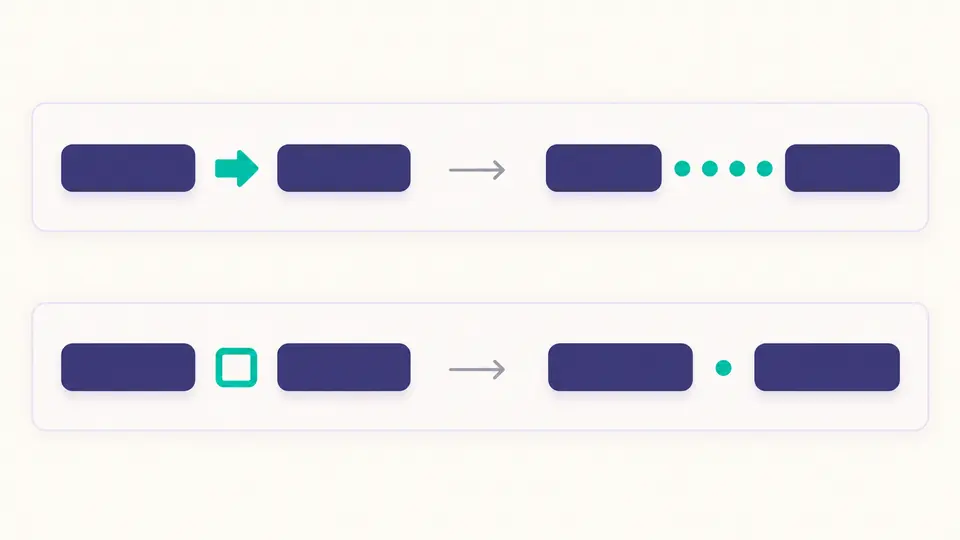
The default removes ASCII spaces and tabs at every line end. Enable leading trim only when indentation can go. The example and clear buttons show a replacement preview before changing the source.
Automatic preview waits 350 ms after an edit. Turn it off to use Preview cleanup or Ctrl/Cmd+Enter. Editing text or a cleanup option immediately disables copy, download and apply until the preview is current.
Review changed lines and character counts before applying the result. Undo restores the previous input, output and settings. Showing whitespace only affects the display; it does not rerun cleaning or add markers to an export.
Line tails and line starts are separate switches. Trimming a line of only spaces leaves an empty line in place; it does not remove that line or its separator.
Use remove extra spaces to reduce runs of two or more U+0020 characters in the content to one. The initial run of spaces and tabs remains protected. Tabs between words stay tabs unless their conversion is also selected.
The NBSP option replaces U+00A0 with U+0020 before trimming and collapsing. It makes formerly protected word boundaries eligible for wrapping. The six literal characters in remain text because no HTML decoding takes place.
Tabs to spaces expands each tab to the next stop at a width of 2, 4 or 8. Spaces to tabs compresses qualifying space runs only in the leading indentation, leaving sentence spacing alone. Existing tabs still advance the current column.
Select leading trim, trailing trim and collapse as needed. The pipeline handles NBSP first, then line ends, line starts, repeated ordinary spaces and finally tabs. A space created by tab expansion is therefore not collapsed again in the same run.
Only the separate NBSP switch changes U+00A0. It replaces the character with a regular space; a following trim or collapse step may then remove that new space. Keeping the switch off preserves the original non-breaking behavior.
Deleting a separator can merge words or fields. Expanding to the next tab stop retains a gap with a specified width. This tool offers that conversion explicitly; it does not provide a delete-all-tabs shortcut.
The counts total characters consumed and produced by each active step, rather than a minimal diff. Replacing NBSP consumes one and produces one; trimming that new space consumes another. Before and after character totals show the net change.
Yes. The source visualization and result use highlighted marks with a legend. A dot or arrow already present in the source remains ordinary text and is not counted as whitespace. The display switch can hide added marks without changing the result.
Did a step behave unexpectedly?
Use the whitespace cleaner on the example first, then paste your own text and select only the differences you intend to keep.
Preview the result before applying it.